

Quick reference
Example: Harbor Legal Services
Harbor receives intake questions on WhatsApp. Paralegal Jess and attorney Omar must never lose a lead.Morning routine
- Open Chat (
/chat) - Toggle Unread above thread list
- Open label filter →
New intake,Urgent - Assign
Urgentto Omar via Assigned to in recipient panel - Jess works
New intakequeue
During the day
- Customer sends documents → Jess replies in Chat composer (customer sees WhatsApp)
- Thread done → End Chat with note: “Sent engagement letter, follow up Friday”
- Same person messages next week → full history visible; thread reopens
What is a thread?
A thread is one ongoing conversation with a contact on a channel (or linked across channels for the same person).Related threads (multi-channel)
When one contact messages on WhatsApp and Instagram, Vendschat may link related thread IDs under one contact. Unread/read updates can apply across that conversation group.Threads: open, resolved, and End Chat
How to resolve (End Chat)
Where: Recipient panel (right side on desktop) → status strip → End Chat Steps:- Select the thread in Chat
- Open recipient panel (contact info icon on mobile)
- Click End Chat
- Enter optional ending note (visible to team in thread history)
- Confirm
Unread counts & triage
Marking read
Sidebar Chat icon may show aggregate unread from notifications.
Labels that actually help
Good labels match how you route work, not how you wish work looked.Create labels
Path: Settings → Workspace → Labels (/settings/workspace/labels)
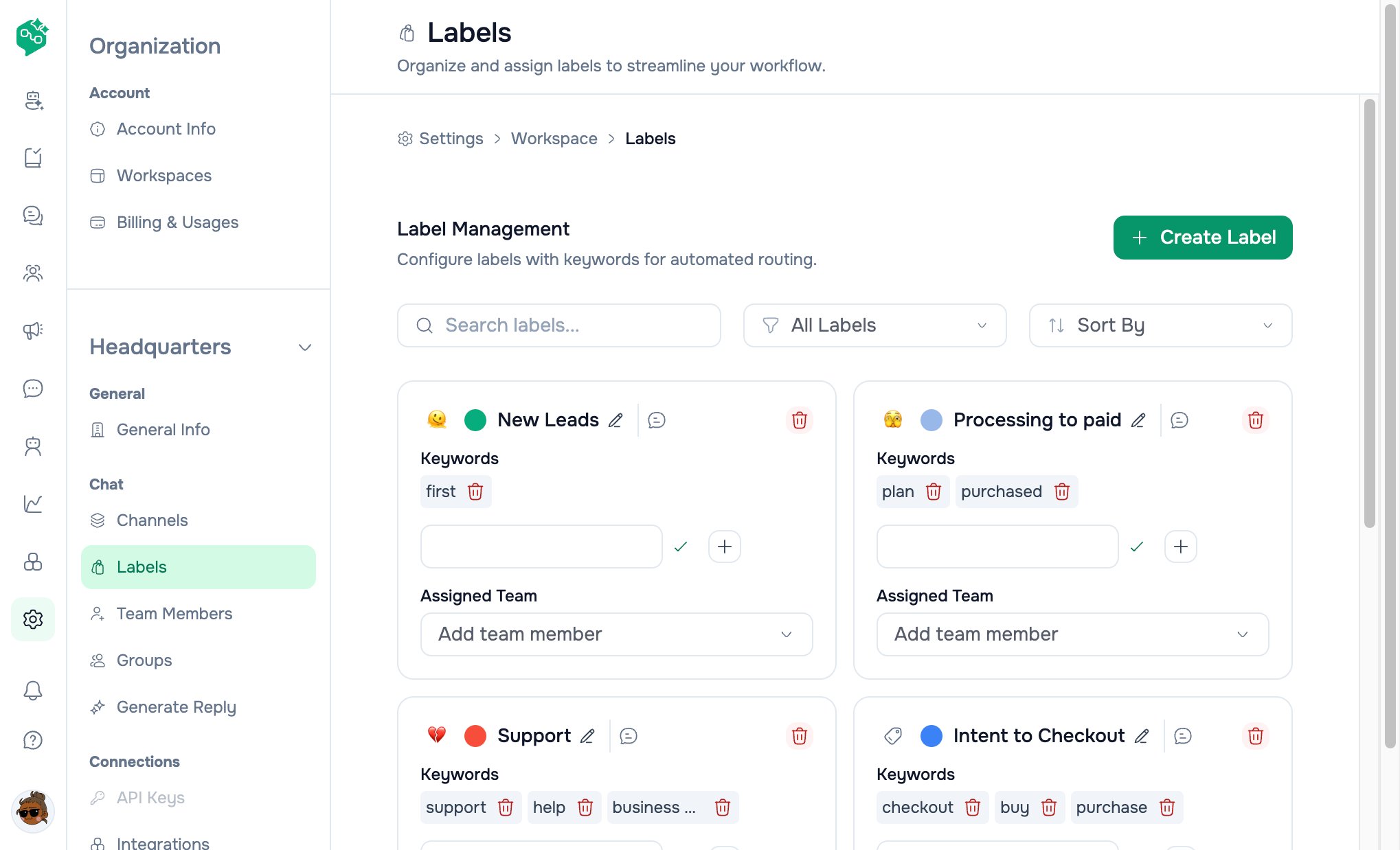
Workspace labels
Also: Chat thread list header → Labels icon shortcut.
Apply labels in Chat
Changes sync to thread list chips and label filter immediately (including real-time updates).
Filter by label
- Chat thread list
- Filter (funnel) icon
- Select one or more labels (multi-select)
- List shows only matching threads
Label-scoped team access
Some members only see threads with specific labels (e.g. freelancer onClient-X only). Configured via Team Members membership — they still use the same Chat UI with a reduced label filter set.
Filters & search (thread list)
Search and filters combine (debounced refresh).
Recipient panel (who is this?)
Desktop: Right column when thread selected (hide with edge chevron)Mobile: Contact info from conversation header
Messaging window (WhatsApp / Meta)
Panel and composer reflect whether free-form reply is allowed:- Window open — type normally in composer
- Window closed — use Templates (WhatsApp)
AI Agents in the inbox
Assign an AI Agent like a teammate — it replies only on threads assigned to it.
Co-Admin is not a customer bot — see AI Agents overview.
Conversation timeline
Messages appear in the center column:- Inbound — customer (left-aligned bubbles)
- Outbound — your team (right-aligned)
- Delivery ticks — sent, delivered, read (WhatsApp-style)
- Date separators — between calendar days
- System lines — assignments, status changes
Co-Admin shortcuts
Ask:- “How many open threads do we have?”
- “Give me a workspace overview”