

/settings/workspace/channels/whatsapp/setup).

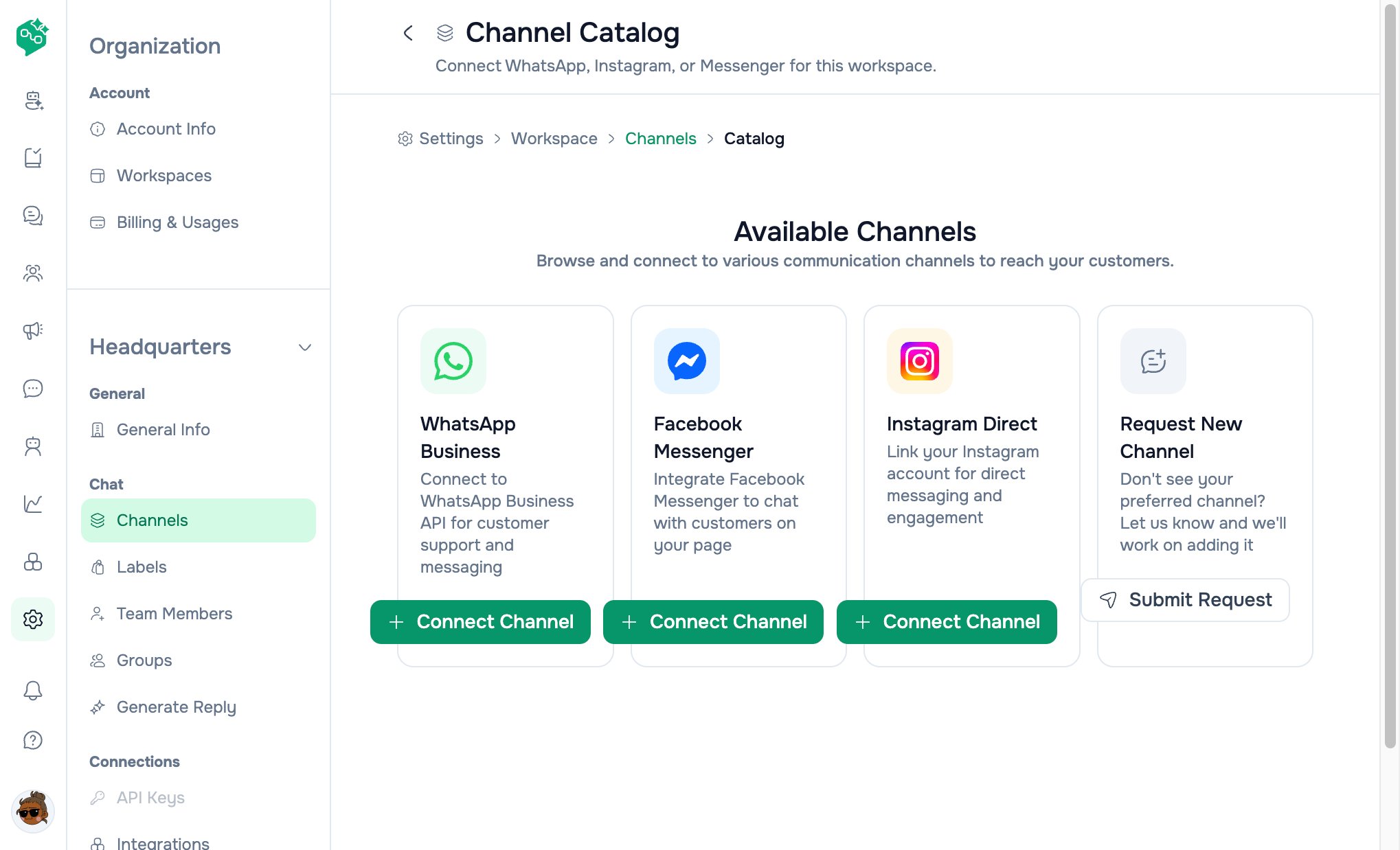
Add WhatsApp from the catalog
Quick reference
Why teams connect WhatsApp
- Official Business API — Verified business identity, approved templates, scale Meta expects
- Shared inbox — Every agent sees the same threads in Chat
- Automation-ready — AI Agents, broadcasts, webhooks, product catalog messages
- One number, many agents — No more passing a single phone around the office
Example: Metro Clinics
Metro Clinics runs three locations. Patients message one WhatsApp number for appointments.
When a patient messages after hours, their AI Agent (Receptionist template) collects preferred date — human confirms next morning.
Navigation — step by step (new connection)
1. Open the right workspace
WhatsApp connects to the current workspace only.- Open Settings
- If you have multiple workspaces, use the workspace name dropdown at the top of the Workspace section
- Select the workspace that should own this number (e.g.
Client — BloomBox)
2. Open Channel Catalog
Click WhatsApp Business → Connect Channel.
3. Choose use case (first-time connect only)
Page title: Connect WhatsApp (Cloud API)
Pick guidance:
- Clinics, delivery, internal help desks → Support only
- E-commerce brands driving ad traffic to WhatsApp → Support, sales & ads
channelId and pick again at step 1.
Direct links with use case pre-selected:
- Support only:
/settings/workspace/channels/whatsapp/setup?mode=messaging - Support, sales & ads:
/settings/workspace/channels/whatsapp/setup?mode=ads
4. Prepare
Step tab: Prepare Before continuing, confirm:- You use a Facebook or Meta login with admin access to your Business Portfolio or WhatsApp assets
- In Meta’s window you will choose Connect a WhatsApp Business app, Create a WhatsApp Business account, or select an existing account
5. Connect with Facebook
Step tab: Connect- Optional: watch the embedded Meta onboarding video on the page
- Click Log in with Facebook (or Continue WhatsApp signup if already signed in)
- Complete Meta’s embedded signup flow in the popup/window:
- Connect WhatsApp Business app (may require QR scan on phone)
- Or create/select WABA and phone number
- Wait for “Saving this connection to your workspace…”
- Success banner shows: name, Phone number ID, Status
If signup stalls, use Start over on the Connect step to log out of Meta and retry.
Use-case config: Support only and Support, sales & ads use different Meta embedded-signup configuration IDs (
NEXT_PUBLIC_WHATSAPP_EMBEDDED_SIGNUP_CONFIG_ID vs ads config). If ads mode fails to load, Support only may still work — contact support.
Tokens are stored on the server — agents never handle API keys in Chat.
6. Verify on Channels list
Go to Settings → Workspace → Channels (/settings/workspace/channels).
Your card shows:
- Display name (or “WhatsApp Business”)
- Channel ID: phone number ID (Meta identifier)
- Manage button
Navigation — manage / reconnect existing channel
- Settings → Workspace → Channels
- Click the WhatsApp card (or Manage)
- Opens:
/settings/workspace/channels/whatsapp/setup?channelId={id} - Managing this channel banner shows:
- Display name, Status, Connected date
- Phone (display number), Phone number ID, WABA ID, Business Portfolio (when available)
- Steps: Prepare → Connect — reconnect via Facebook if disconnected or error
What each status means
After you’re live
WhatsApp 24-hour messaging window
Co-Admin should explain this policy when users ask “why can’t I type?” — it’s Meta’s rule, not a Vendschat bug.
Multiple agents on one number
Yes. Use assignments and labels so ownership is clear. All agents share the same thread in Chat.AI on WhatsApp
Assign an AI Agent to a thread or set a workspace default agent. Customer-facing bots follow the same channel rules (templates outside 24h). See AI Agents overview.Troubleshooting
Plan & workspace notes
- WhatsApp is included on all paid plans (Starter, Growth, Advanced)
- Each workspace has its own WhatsApp connections — numbers don’t copy when you create a new workspace
- Contacts billed at organization level, not per channel
- Advanced plan: run separate workspaces per client brand, each with its own WhatsApp number