

/settings/organization/billing&usages) and Plans (/settings/organization/billing&usages/plans). The page heading is Billing & Usage; the settings nav label is Billing & Usages.
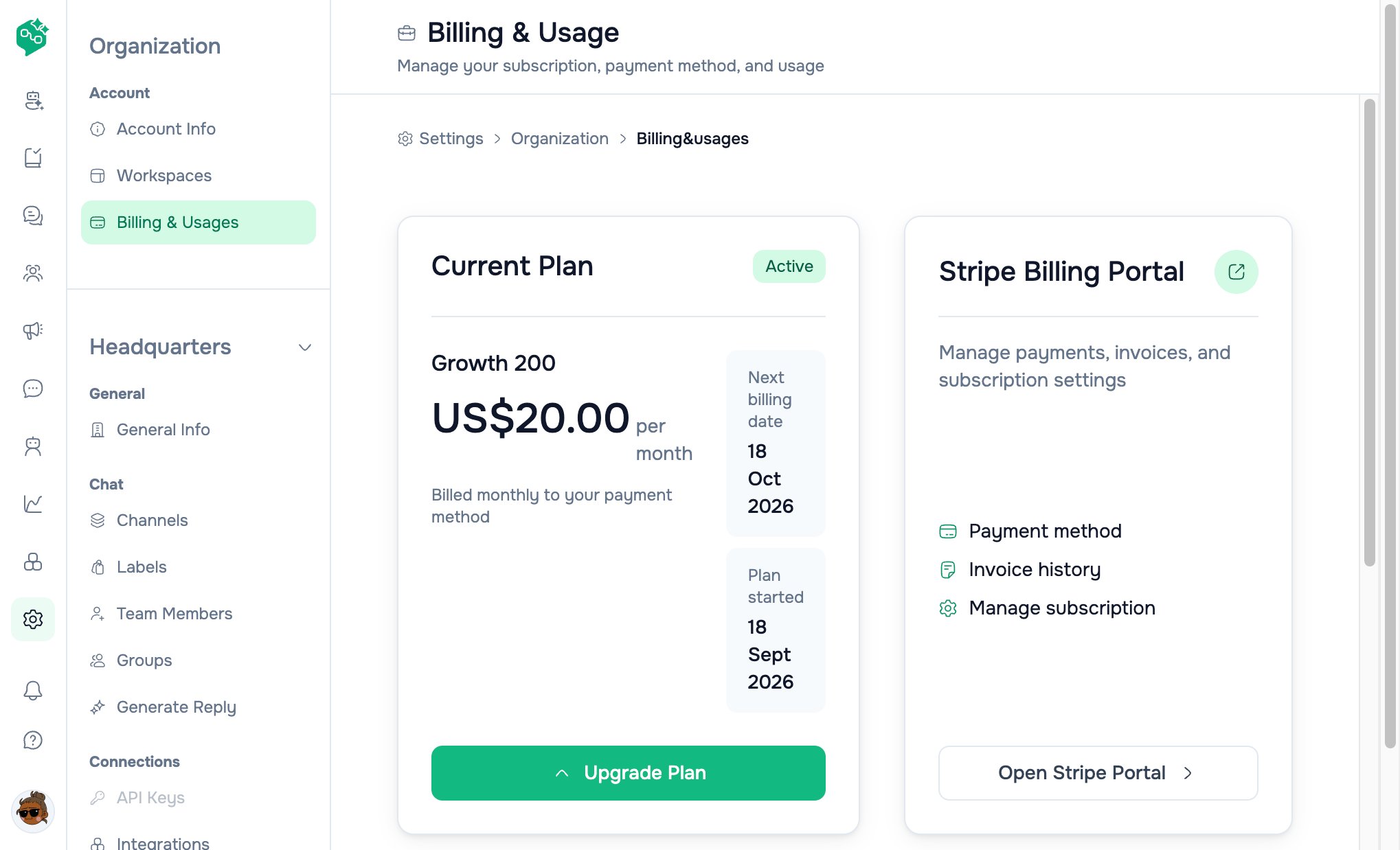
Billing & Usage
Quick reference
Example: GrowStudio Apps
GrowStudio starts on Starter, hits heavy WhatsApp traffic mid-quarter, then launches a broadcast campaign.
Lesson: Check Billing & Usage before big broadcasts or hiring — upgrade before the event, not after failures or overage surprises.
How Vendschat billing is structured
Organization vs workspace
- Billing is per organization, not per workspace.
- One organization can have multiple workspaces (Advanced plan — see feature matrix).
- Contacts and seats are counted at the organization level across all workspaces.
- Every team member in any workspace under the org shares the same plan limits.
Subscription lifecycle statuses
You may see these on Billing & Usage:Billing cycle
- Choose monthly or annual at subscribe/upgrade.
- Annual billing saves up to 20% vs twelve monthly payments.
- Current period start and end dates appear on Billing & Usage (“Plan started” / “Next billing date”).
- Plans auto-renew unless canceled before the renewal date.
- Cancellation takes effect at the end of the paid period — no prorated refund for unused time (see refund policy below).
Payment processor
- All card payments run through Stripe.
- Taxes (VAT, GST, sales tax) may apply and are your responsibility — prices shown are typically exclusive of tax.
- Third-party messaging fees (e.g. Meta WhatsApp conversation charges) are separate from your Vendschat subscription.
Plan families at a glance
Vendschat has three marketing tiers. Growth and Advanced each have contact volume sub-tiers you pick with a slider on the Plans page.
For the full price table by contact tier, see Pricing & plan reference.
Growth vs Advanced at the same contact tier
At the same contact bucket (e.g. 500 contacts), Advanced costs more because it adds:- Developer API access
- Multiple workspaces under one organization
- Managed n8n instance (4 vCPU, 8 GB RAM, 75 GB NVMe, auto backup — upgradable from dashboard)
- Dedicated account manager and SLA (support tier)
Enterprise: 1500+ contacts
When the contact slider hits 1500+, pricing switches to Contact Sales — no self-serve Stripe checkout. Email sales or use the contact link on the Plans page for a tailored quote (volume, compliance, custom terms). Internal plan keys for this tier:growth_1500_plus, advanced_1500_plus.
What “usage” means
Contacts (monthly active)
Definition: The number of unique contacts your organization messages during the current billing period (cycle start → cycle end).
Where to see it: Billing & Usage → Usage Overview → Contacts — shows
used / limit, progress bar, and remaining count.
Overage: On Growth and Advanced, extra contacts beyond your included bucket are charged *0.125 each.” Overage is billed automatically — you do not need to manually upgrade mid-cycle for overage to apply (though upgrading tier may be cheaper if you consistently exceed).
Seats (team members)
Definition: People on your account who can log in and work in workspaces.
Important: “Seats” are login accounts, not “agents online today.” A part-time freelancer who has an account counts as one seat.
Plan cycle dates
Usage counters for contacts reset at the start of each new billing period.
Where to manage billing in the dashboard
Billing & Usage (main page)
Path: Settings → Organization → Billing & Usages
Non-owners see usage but get “Contact owner to manage billing” instead of portal/checkout buttons.
Plans page
Path: Settings → Organization → Billing & Usage → Plans (or Upgrade Plan)
After successful checkout, you return to Billing & Usage with
?success=true. Canceled checkout returns to Plans with ?canceled=true.
Price on plan cards: Totals on the Plans page use in-app display prices plus selected extra seats. Stripe Checkout charges the live Stripe price IDs from the catalog — if display and Stripe ever differ, the checkout total is authoritative.
Who can do what
Tip: Designate one owner as billing contact; admins can monitor usage and nudge before limits hit.
Upgrading
When to upgrade from Starter → Growth
Consider Growth when you need any of:- WhatsApp Broadcasts to labeled segments
- Incoming & outgoing webhooks
- Zapier, Make, or n8n integrations (Growth connects; Advanced adds hosted n8n)
- Custom AI Agents with knowledge sync (website/files)
- Team internal chat
- Priority support
When to upgrade Growth → Advanced
Consider Advanced when you need any of:- Developer REST API + API keys for custom backends
- Multiple workspaces (e.g. agency per client, or brands separated)
- Managed n8n instance included (4 vCPU / 8 GB RAM / 75 GB NVMe)
- Dedicated account manager or SLA
How to upgrade (owner)
- Go to Settings → Billing & Usage → Plans
- Pick monthly or annual
- Select contact tier (Growth/Advanced) and total seats if > 10
- Click Subscribe or Upgrade
- Complete Stripe Checkout (promotion codes supported)
- Confirm new plan on Billing & Usage
Downgrading
Plan downgrade
There is no downgrade button in the dashboard UI today. Downgrades go through:- Stripe Billing Portal → Manage subscription, or
- Support / sales review, or
- Backend
POST /settings/plan/downgrade-request(owner only) — creates apending_salesrequest withrisk_data_losswhen current contact usage exceeds the target tier limit
Seat changes after subscribe
- Increase seats: Adjust at next Plans checkout for new subscribers, or use Stripe portal where available. Backend
POST /settings/plan/seats/changeexists (owner, prorated upgrade) but is not exposed as a button on the Billing & Usage page. - Decrease seats: See seat downgrade below — active drops now; billed at period end.
Seat downgrade
- Lowering seats below current billed count: active seats drop now; billing adjusts at period end — UI shows “Seats will reduce to X at end of billing period”
Cancel subscription
Use Stripe Billing Portal → Manage subscription or contact [email protected]. Cancellation applies at period end. Portal return URL after payment management:/settings/organization/billing&usages.
Backend billing API (reference)
Free tier: New orgs without checkout get
plan_tier: free, contact_limit: 100, until a paid subscription is created via Stripe webhook after checkout.
Free trial
Landing CTA: “Free 14-day trial. No credit card required.”
Overage & automatic billing adjustments
Contact overage (Growth & Advanced)
- You message a new unique contact beyond your included limit
- System records overage for the cycle
- Stripe metered line item increments ($0.125 per contact)
- Billing & Usage may show an Overage card with running amount
- Charge appears on the period invoice
Starter
No contact overage — unlimited contacts included in base price.Pricing mechanics (seats + annual)
Example: Growth 500 with 15 seats, monthly
- Base Growth 500: $40/mo
- Included seats: 10
- Extra seats: 5 × 100/mo
- Total: $140/mo (before tax)
Example: Starter with 12 seats, annual
- Base: 384/yr (20% off × 12)
- Extra seats: 2 × 20/mo → annual seat portion discounted similarly at checkout
- UI shows effective monthly equivalent on annual toggle
Features by plan (summary)
All plans include WhatsApp Business, Facebook Messenger, and Instagram Direct.
Full row-by-row matrix: Pricing & plan reference.
n8n on Advanced
Advanced includes a managed n8n instance (not available on Starter or Growth alone):
Use n8n to chain inbound messages → CRM → Slack → custom logic. Growth plan can still use external n8n via webhooks/Zapier; Advanced gives you hosted capacity.
Discounts & special programs
Invoices, refunds & policy highlights
Aligned with Vendschat Terms of Service:Meta / WhatsApp costs (separate bill)
Vendschat subscription does not include Meta WhatsApp conversation fees. Depending on region and conversation category, Meta may charge per 24-hour conversation window. Those charges are:- Paid directly to Meta or via your BSP, or
- Invoiced separately if Vendschat resells access
Practical monitoring habits
- Monthly calendar reminder — check contacts at 70% of limit (Growth/Advanced)
- Before peak season (Black Friday, holidays) — upgrade tier or budget for overage
- One billing owner — clear escalation for admins
- After hiring — reconcile seat count in Plans vs actual accounts
- Ask Co-Admin — “How many contacts have we used?”, “What plan are we on?”, “What’s included in Growth?”
Common customer questions (Co-Admin answer patterns)
More Q&A: Billing FAQ.
Starter → Growth → Advanced decision tree
Related docs
- Billing overview — hub and route map
- Pricing & plan reference — complete price table, internal tier names, feature matrix
- Billing FAQ — extended question bank for support AI
- Integrations overview — Growth+ features
- Broadcasts — Growth+ campaigns
- AI Agents overview — custom agents on Growth+
- Terms of Service — legal billing terms