


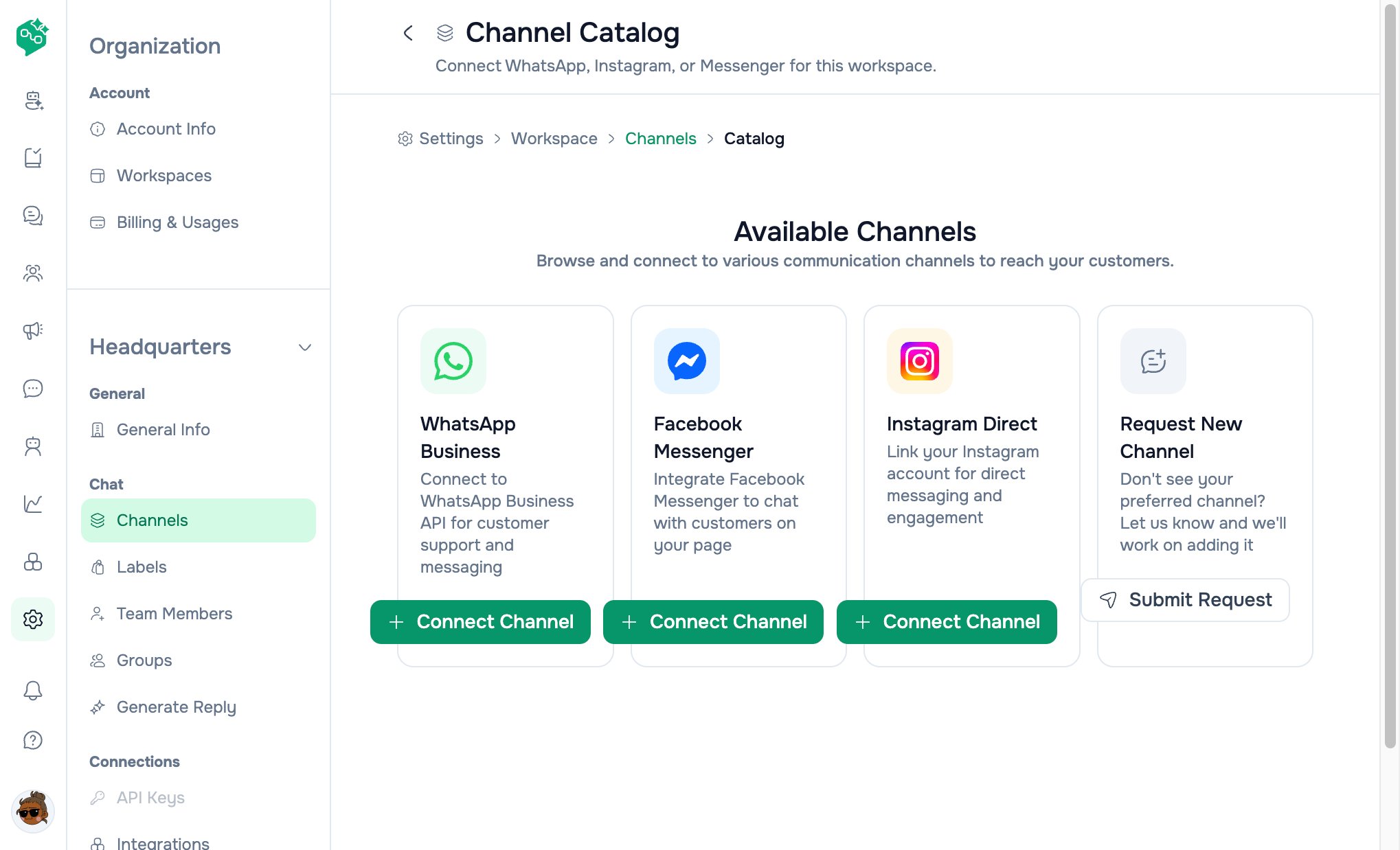
Channel catalog
Quick reference
Facebook Messenger
Best for: Brands with an active Facebook Page — product questions, order DMs, ad comment follow-ups.Example: PagePop Snacks
PagePop runs Facebook ads to their Page. Customers ask “ships to Chittagong?” in Messenger.Messenger setup — step by step (new connection)
1. Open Channel Catalog
Settings → Workspace → Channels → Add Channel → click Facebook Messenger → Connect Channel.2. Prepare
Page title: Connect Messenger Confirm:- Your Meta login can manage the Facebook Page you want to connect
- Messaging is enabled on that Page for customer conversations
3. Connect with Facebook
- Click Log in with Facebook
- Select the Page when Meta prompts
- Wait for “Saving this Messenger connection to your workspace…”
- Success shows: Page name, Page ID, Status
4. Verify
Settings → Workspace → Channels — card shows Page name and Channel ID (Page ID).Messenger — manage / reconnect
- Settings → Workspace → Channels → click Messenger card
- URL:
/settings/workspace/channels/messenger/setup?channelId={id} - Managing this channel banner: name, status, connected date, Page ID, category (if stored)
- Jumps to Connect step — use Connect with Facebook to reconnect
Instagram Direct
Best for: Social sellers, influencers, and brands living in Instagram DMs and story replies.Example: Kaya Skincare
Kaya launches a serum via Instagram stories. Story replies flood in.Instagram setup — step by step (new connection)
1. Open Channel Catalog
Settings → Workspace → Channels → Add Channel → Instagram Direct → Connect Channel.2. Prepare
Page title: Connect Instagram Confirm:- You will sign in with the Instagram professional (business or creator) account you want
- A linked Facebook Page is not required for this flow
- You’re authorized to grant Instagram Direct messaging access
3. Connect with Instagram
- Click Connect with Instagram
- A popup window opens — complete Instagram sign-in and grant messaging access
- If popup is blocked: allow popups for Vendschat, then try again
- Wait for “Saving this Instagram connection to your workspace…”
- Success shows: account name,
@username(if available), Instagram User ID, Status
4. Verify
Settings → Workspace → Channels — card may show@username as title when metadata includes ig_username.
Instagram — manage / reconnect
- Settings → Workspace → Channels → click Instagram card
- URL:
/settings/workspace/channels/instagram/setup?channelId={id} - Banner shows display name,
@username, identifier, status, connected date - Connect with Instagram to reconnect
Status meanings (both channels)
One contact, multiple channels
Vendschat links conversation history when the same person messages on different channels. Your team sees context instead of starting from zero. Example: Customer DMs on Instagram, then sends order proof on WhatsApp — both appear in their contact timeline in Chat. Important: Channels belong to one workspace. Cross-channel identity is within that workspace’s contacts — not across separate workspaces.How Messenger & Instagram connect to the rest of Vendschat
Entry from Analytics
Analytics home lists connected channels. Dashed Connect new channel card links to Settings → Workspace → Channels (not directly to catalog — user can then Add Channel). Per-channel analytics URLs:- Messenger:
/analytics/messenger/{channelId} - Instagram:
/analytics/instagram/{channelId}
Tips for social-heavy teams
Troubleshooting
Connect checklist
- Correct workspace selected in Settings
- Meta / Instagram admin access on the account you’re connecting
- Messaging enabled on Facebook Page (Messenger)
- Professional / Business Instagram account (Instagram Direct)
- Popups allowed (Instagram)
- At least two labels defined before a big campaign
- One teammate invited so you’re not solo on launch night
- Test inbound DM appears in Chat