> ## Documentation Index
> Fetch the complete documentation index at: https://docs.vendschat.com/llms.txt
> Use this file to discover all available pages before exploring further.
# Shared inbox, threads & labels
> Chat is where your team lives. Every customer message becomes a thread you can own, tag, and resolve — with full history when they return.
**Chat** is where your team lives. Every customer message becomes a **thread** you can own, tag, and resolve — with full history when they return.
**Hub doc:** [Chat & inbox overview](/inbox/chat-inbox-overview)
***
## Quick reference
| Topic | Path / action |
| ---------------- | ------------------------------------------------ |
| Open inbox | **Chat** → `/chat` |
| Create labels | **Settings → Workspace → Labels** |
| Filter by label | Thread list → **filter funnel** icon |
| Tag a thread | Conversation header or **recipient panel** |
| End conversation | Recipient panel → **End Chat** |
| Thread statuses | **open**, **pending**, **snoozed**, **resolved** |
***
## Example: Harbor Legal Services
Harbor receives intake questions on WhatsApp. Paralegal **Jess** and attorney **Omar** must never lose a lead.
### Morning routine
1. Open **Chat** (`/chat`)
2. Toggle **Unread** above thread list
3. Open label filter → `New intake`, `Urgent`
4. Assign `Urgent` to Omar via **Assigned to** in recipient panel
5. Jess works `New intake` queue
### During the day
* Customer sends documents → Jess replies in **Chat** composer (customer sees WhatsApp)
* Thread done → **End Chat** with note: *“Sent engagement letter, follow up Friday”*
* Same person messages next week → full history visible; thread **reopens**
***
## What is a thread?
A **thread** is one ongoing conversation with a **contact** on a **channel** (or linked across channels for the same person).
| Concept | Plain language |
| ------------- | ----------------------------------------------------- |
| **Thread** | One conversation timeline |
| **Contact** | The customer (name, phone, email) |
| **Channel** | WhatsApp number, Messenger Page, or Instagram account |
| **Workspace** | All threads belong to the **current workspace** |
### Related threads (multi-channel)
When one contact messages on WhatsApp **and** Instagram, Vendschat may link **related thread IDs** under one contact. Unread/read updates can apply across that conversation group.
***
## Threads: open, resolved, and End Chat
| Status | Meaning | Agent action |
| ------------ | ----------------------------------------------- | ------------------------------------------------ |
| **open** | Needs action — pulsing green indicator in panel | Reply, assign, label |
| **pending** | Waiting on something external | Monitor |
| **snoozed** | Paused intentionally | Return when snooze ends |
| **resolved** | Closed for now | Archive mentally; searchable if customer returns |
### How to resolve (End Chat)
**Where:** Recipient panel (right side on desktop) → status strip → **End Chat**
**Steps:**
1. Select the thread in **Chat**
2. Open **recipient panel** (contact info icon on mobile)
3. Click **End Chat**
4. Enter optional **ending note** (visible to team in thread history)
5. Confirm
Thread status becomes **resolved**. If the customer messages again, the conversation typically **reopens** with prior messages still visible.
**When to resolve:** Issue handled, no immediate follow-up needed, or handoff complete.
**When not to resolve:** Waiting on customer reply you still own — leave **open**.
***
## Unread counts & triage
| Signal | Meaning |
| ------------------------ | ----------------------------------------------- |
| **Unread** toggle filter | Show only threads needing attention |
| Bold preview text | Unread message in thread |
| Red inbound arrow ↘ | Last message was from customer (unread styling) |
| Green badge with number | `unread_count` — messages since last read |
### Marking read
| Method | Behavior |
| ------------------- | ----------------------------------------------- |
| **Open thread** | Automatically marks read (default workflow) |
| **Thread row menu** | Mark as read / Mark as unread (⋯ menu on hover) |
Sidebar **Chat** icon may show aggregate unread from notifications.
***
## Labels that actually help
Good labels match **how you route work**, not how you wish work looked.
| Avoid | Prefer |
| ----------- | ---------------------------------------------------- |
| `Important` | `Refund`, `VIP`, `Legal` |
| `Misc` | `Product-A`, `Campaign-Eid` |
| `John` | Use **assignment** for people; labels for **topics** |
### Create labels
**Path:** **Settings → Workspace → Labels** (`/settings/workspace/labels`)
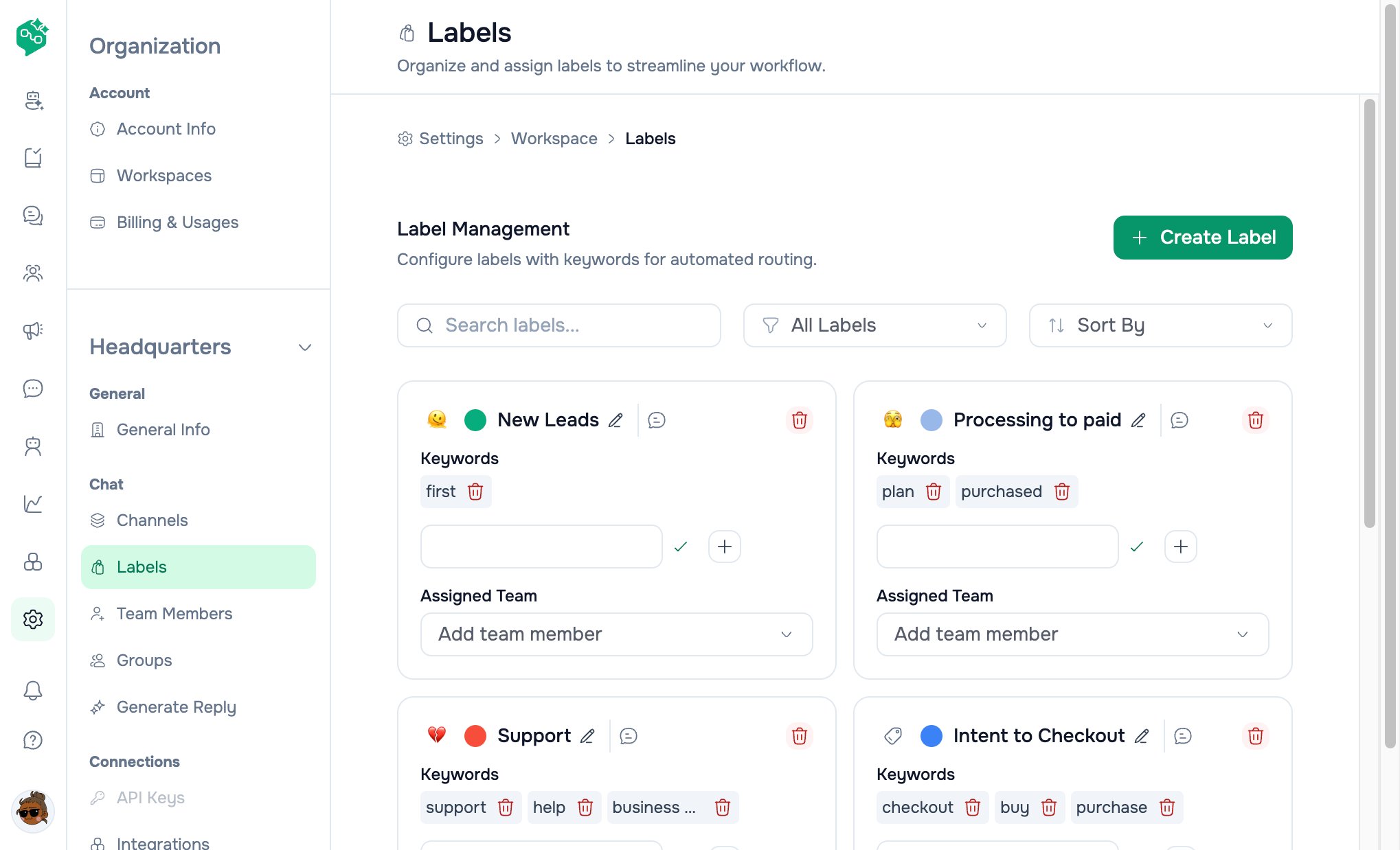 | Field | Tip |
| ------------------------------ | ------------------------------------------------------ |
| **Name** | Short, scannable |
| **Color** | Unread badge can inherit first label color |
| **Emoji** | Shows in filter dropdown and thread chips |
| **Keyword hints** (if enabled) | Auto-tag when customer writes “refund”, “urgent”, etc. |
Also: **Chat** thread list header → **Labels** icon shortcut.
### Apply labels in Chat
| Location | How |
| ----------------------- | ------------------------------- |
| **Conversation header** | Label control on active thread |
| **Recipient panel** | **Labels** section — add/remove |
| **Mobile** | Labels modal from header |
Changes sync to thread list chips and label filter immediately (including real-time updates).
### Filter by label
1. **Chat** thread list
2. **Filter** (funnel) icon
3. Select one or more labels (multi-select)
4. List shows only matching threads
**All labels** clears the filter.
### Label-scoped team access
Some members only see threads with specific labels (e.g. freelancer on `Client-X` only). Configured via **Team Members** membership — they still use the same **Chat** UI with a reduced label filter set.
***
## Filters & search (thread list)
| Control | Location | Purpose |
| -------------- | -------------------------- | ----------------------------------------- |
| **Search** | Below header | *“Search by Phone or Name…”* |
| **Channel** | Header dropdown | All channels vs one WhatsApp/Messenger/IG |
| **Read state** | All / Unread / Read toggle | Triage backlog |
| **Labels** | Funnel dropdown | Campaign or queue filters |
Search and filters combine (debounced refresh).
***
## Recipient panel (who is this?)
**Desktop:** Right column when thread selected (hide with edge chevron)\
**Mobile:** **Contact info** from conversation header
| Section | What you see / do |
| ----------------------------------- | ------------------------------------ |
| **Avatar & name** | Click name to edit inline |
| **Phone, email, country, language** | Editable contact fields |
| **Note** | Internal only — not sent to customer |
| **Assigned to** | Teammate, group, or AI Agent |
| **Labels** | Thread tags |
| **Available channels** | Where you can reach this contact |
| **Status** | Open · **End Chat** |
### Messaging window (WhatsApp / Meta)
Panel and composer reflect whether **free-form reply** is allowed:
* **Window open** — type normally in composer
* **Window closed** — use **Templates** (WhatsApp)
See [composer doc](/inbox/composer-generate-reply) and [WhatsApp channels](/channels/whatsapp).
***
## AI Agents in the inbox
Assign an **AI Agent** like a teammate — it replies only on threads **assigned to it**.
| Step | Action |
| ---- | ------------------------------------------------------------------ |
| 1 | Open thread |
| 2 | Recipient panel → **Assigned to** → pick AI Agent |
| 3 | Bot answers per its knowledge & rules |
| 4 | **Human takeover** — reassign to person or disable agent on thread |
Co-Admin is **not** a customer bot — see [AI Agents overview](/ai-agents/ai-agents-overview).
***
## Conversation timeline
Messages appear in the center column:
* **Inbound** — customer (left-aligned bubbles)
* **Outbound** — your team (right-aligned)
* **Delivery ticks** — sent, delivered, read (WhatsApp-style)
* **Date separators** — between calendar days
* **System lines** — assignments, status changes
**Search in conversation:** Header search icon → find text within open thread.
***
## Co-Admin shortcuts
Ask:
* *“How many open threads do we have?”*
* *“Give me a workspace overview”*
For *how* to filter or label, Co-Admin uses these product docs. For live counts, workspace tools.
***
## Related docs
* [Chat & inbox overview](/inbox/chat-inbox-overview)
* [Assignments & teams](/inbox/assignments-and-teams)
* [Inbox FAQ](/inbox/inbox-faq)
* [Onboarding — create labels](/getting-started/onboarding-and-setup-guide)
| Field | Tip |
| ------------------------------ | ------------------------------------------------------ |
| **Name** | Short, scannable |
| **Color** | Unread badge can inherit first label color |
| **Emoji** | Shows in filter dropdown and thread chips |
| **Keyword hints** (if enabled) | Auto-tag when customer writes “refund”, “urgent”, etc. |
Also: **Chat** thread list header → **Labels** icon shortcut.
### Apply labels in Chat
| Location | How |
| ----------------------- | ------------------------------- |
| **Conversation header** | Label control on active thread |
| **Recipient panel** | **Labels** section — add/remove |
| **Mobile** | Labels modal from header |
Changes sync to thread list chips and label filter immediately (including real-time updates).
### Filter by label
1. **Chat** thread list
2. **Filter** (funnel) icon
3. Select one or more labels (multi-select)
4. List shows only matching threads
**All labels** clears the filter.
### Label-scoped team access
Some members only see threads with specific labels (e.g. freelancer on `Client-X` only). Configured via **Team Members** membership — they still use the same **Chat** UI with a reduced label filter set.
***
## Filters & search (thread list)
| Control | Location | Purpose |
| -------------- | -------------------------- | ----------------------------------------- |
| **Search** | Below header | *“Search by Phone or Name…”* |
| **Channel** | Header dropdown | All channels vs one WhatsApp/Messenger/IG |
| **Read state** | All / Unread / Read toggle | Triage backlog |
| **Labels** | Funnel dropdown | Campaign or queue filters |
Search and filters combine (debounced refresh).
***
## Recipient panel (who is this?)
**Desktop:** Right column when thread selected (hide with edge chevron)\
**Mobile:** **Contact info** from conversation header
| Section | What you see / do |
| ----------------------------------- | ------------------------------------ |
| **Avatar & name** | Click name to edit inline |
| **Phone, email, country, language** | Editable contact fields |
| **Note** | Internal only — not sent to customer |
| **Assigned to** | Teammate, group, or AI Agent |
| **Labels** | Thread tags |
| **Available channels** | Where you can reach this contact |
| **Status** | Open · **End Chat** |
### Messaging window (WhatsApp / Meta)
Panel and composer reflect whether **free-form reply** is allowed:
* **Window open** — type normally in composer
* **Window closed** — use **Templates** (WhatsApp)
See [composer doc](/inbox/composer-generate-reply) and [WhatsApp channels](/channels/whatsapp).
***
## AI Agents in the inbox
Assign an **AI Agent** like a teammate — it replies only on threads **assigned to it**.
| Step | Action |
| ---- | ------------------------------------------------------------------ |
| 1 | Open thread |
| 2 | Recipient panel → **Assigned to** → pick AI Agent |
| 3 | Bot answers per its knowledge & rules |
| 4 | **Human takeover** — reassign to person or disable agent on thread |
Co-Admin is **not** a customer bot — see [AI Agents overview](/ai-agents/ai-agents-overview).
***
## Conversation timeline
Messages appear in the center column:
* **Inbound** — customer (left-aligned bubbles)
* **Outbound** — your team (right-aligned)
* **Delivery ticks** — sent, delivered, read (WhatsApp-style)
* **Date separators** — between calendar days
* **System lines** — assignments, status changes
**Search in conversation:** Header search icon → find text within open thread.
***
## Co-Admin shortcuts
Ask:
* *“How many open threads do we have?”*
* *“Give me a workspace overview”*
For *how* to filter or label, Co-Admin uses these product docs. For live counts, workspace tools.
***
## Related docs
* [Chat & inbox overview](/inbox/chat-inbox-overview)
* [Assignments & teams](/inbox/assignments-and-teams)
* [Inbox FAQ](/inbox/inbox-faq)
* [Onboarding — create labels](/getting-started/onboarding-and-setup-guide)