> ## Documentation Index
> Fetch the complete documentation index at: https://docs.vendschat.com/llms.txt
> Use this file to discover all available pages before exploring further.
# Onboarding & setup guide
> Everything new users and admins need to go from sign-up to a working shared inbox — account creation, workspace setup, the in-app Onboarding checklist,…
Everything new users and admins need to go from **sign-up** to a working shared inbox — account creation, workspace setup, the in-app **Onboarding** checklist, and where to go next.
**Who this is for:** First-time owners, Google sign-in users completing workspace setup, and anyone asking Co-Admin *“What do I do after I sign up?”* or *“Where is the onboarding page?”*
**Two different “onboarding” moments in Vendschat:**
| Moment | URL | When it appears |
| ----------------------------- | ------------------- | ------------------------------------------------------------------- |
| **Account / workspace setup** | `/oauth-onboarding` | Google sign-in **without** an existing workspace |
| **Product setup checklist** | `/onboarding` | Anytime after you have a workspace — connect channels, labels, team |
***
## Quick reference
| Topic | Answer |
| ----------------------------------------------- | ------------------------------------------------------------------- |
| Sign up | `/signup` — email + password **or** Continue with Google |
| Sign in | `/signin` |
| Google new user lands on | `/oauth-onboarding` → then `/chat` |
| Email sign-up lands on | `/chat` directly (org + workspace created at signup) |
| Setup checklist page | **Onboarding** in sidebar → `/onboarding` |
| First must-do | Connect one **channel** (WhatsApp, Messenger, or Instagram) |
| Default workspace name (email signup) | **Headquarters** |
| Default workspace name (Google setup, if blank) | **Headquarters** |
| Who sees **Onboarding** in nav | Users with **overview** page access (typically owners/admins) |
| Invited teammates | Accept invite → `/chat` — skip account onboarding |
| Get help in-app | **AI Workspace Co-Admin** (internal assistant, not customer-facing) |
***
## The full journey (diagram)
```text theme={null}
┌─────────────────┐
│ vendschat.com │
│ or /signup │
└────────┬────────┘
│
┌──────────────┴──────────────┐
│ │
Email sign-up Google sign-up
│ │
▼ ▼
Org + workspace created User account only
at signup (owner) (no workspace yet)
│ │
▼ ▼
/chat /oauth-onboarding
(ready to work) (org + workspace form)
│
▼
/chat
│
┌─────────────────────────────┘
│
▼
Optional: /onboarding checklist
(channels → labels → AI Agent → team)
│
▼
/chat — first customer reply
```
***
## Example: Nova Retail’s first hour
**Sam** signs up with email for **Nova Retail**.
| Minute | What happens |
| ------ | ----------------------------------------------------------------------------------- |
| 0–2 | `/signup` — name, company **Nova Retail**, work email, password → lands on **Chat** |
| 3–5 | Sidebar → **Onboarding** → Step 1 → **Manage channels** → connects WhatsApp |
| 6–8 | Step 2 → creates labels `Orders`, `Returns` |
| 10 | Sends test reply in **Chat** when first customer messages |
| 15 | Step 4 → invites **Priya** as **Member** (Chat-only) |
Sam never saw `/oauth-onboarding` because email signup creates the workspace automatically.
**Contrast:** **Alex** uses **Continue with Google** as a brand-new user → `/oauth-onboarding` → enters org **Alex Studio**, workspace **Main** → **Chat**.
***
## Part 1 — Creating your account
### Sign up (`/signup`)
**Path:** Open the app sign-up page or marketing **Start trial** links.
**Header copy:** *“Create your account”* · *“Start your 7-day free trial. No credit card required.”*
**Options:**
| Method | Fields | After success |
| ------------------------ | ------------------------------------------------- | ------------------------------------------------------- |
| **Continue with Google** | Google account picker | New user → `/oauth-onboarding`. Existing user → `/chat` |
| **Email** | Full name, **Company name**, work email, password | → `/chat` |
**Password requirements (email):**
* Upper & lowercase letters
* At least one number
* Special character (`!@#$%^&*`)
* Minimum 8 characters
Strength indicator shows Weak → Strong as requirements are met.
**Legal:** By signing up you agree to [Terms of Service](https://vendschat.com/terms) and [Privacy Policy](https://vendschat.com/privacy).
**What email signup creates automatically:**
| Created | Value |
| ---------------- | --------------------------------------------------------- |
| **Organization** | Your **Company name** from the form |
| **Workspace** | **Headquarters** (default name) |
| **Your role** | **Owner** on that workspace |
| **Subscription** | Free tier to start — upgrade later in **Billing & Usage** |
You do **not** need a separate “create workspace” step after email signup.
### Sign in (`/signin`)
**Path:** `/signin`
| Method | After success |
| -------------------- | ---------------------------------------------------------------- |
| Email + password | → `/chat` |
| Continue with Google | Existing workspace → `/chat`. No workspace → `/oauth-onboarding` |
**Google errors** (cancelled, missing code, failed) show on sign-in and clear the URL.
### Google OAuth workspace setup (`/oauth-onboarding`)
**When:** First-time **Google** sign-in with **no** workspace membership.
**Page title:** *“Set up your workspace”*\
**Subtitle:** *“Create your organization and workspace to get started.”*
| Field | Required | Notes |
| --------------------- | -------- | ------------------------------------------ |
| **Organization name** | Yes | e.g. *Acme Inc* |
| **Workspace name** | No | Defaults to **Headquarters** if left blank |
Click **Continue** → organization + workspace + owner membership created → redirect to **`/chat`**.
**If you already have a workspace:** This page redirects you to `/chat` — you cannot create a second org through this flow.
**Auth guard:** While `needsOnboarding` is true, any dashboard URL redirects here before **Chat**, **Settings**, etc.
***
## Part 2 — Invited teammates (different path)
**Path:** Invitation email link with token → invite accept page.
| Step | What you see |
| ---- | ---------------------------------------------------------------------------------------- |
| 1 | *“You're invited to join {workspace}”* with your role badge |
| 2 | Email pre-filled; set password (or use existing password if you already have an account) |
| 3 | **Accept Invitation** → `/chat` |
**Invited users skip:**
* `/signup` company creation
* `/oauth-onboarding`
They join an **existing** workspace with the role the inviter chose (**Owner**, **Admin**, or **Member**).
**Member (Chat-only)** users typically land in **Chat** only — they may not see **Onboarding** or **Settings** in the sidebar unless given page access.
See [Team invite FAQ](#invited-teammates) below and [Channels — permissions](/channels/channels-faq#permissions--roles).
***
## Part 3 — In-app Onboarding checklist (`/onboarding`)
After your account and workspace exist, use the **Onboarding** page as a guided checklist.
### How to open it
| Platform | Navigation |
| ------------------- | ------------------------------------------------------------------ |
| **Desktop sidebar** | **Onboarding** (book-check icon) — first item when you have access |
| **Mobile** | **More** tab → **Onboarding** |
| **Direct URL** | `/onboarding` |
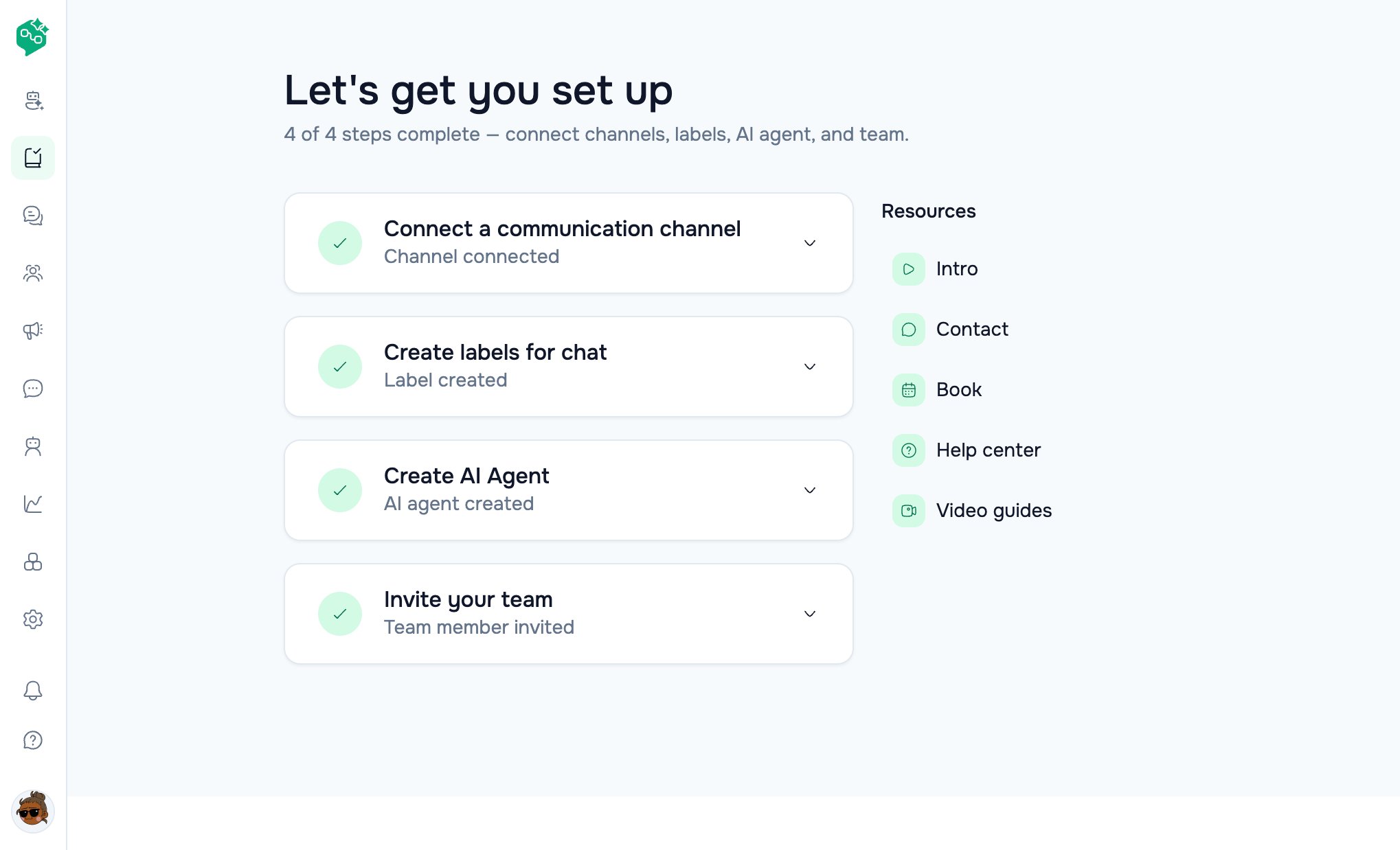
**Page title:** *“Let's get you set up”*\
**Subtitle (live):** remaining-step copy, for example *“connect channels, labels, AI agent, and team.”*
**Access note:** The nav item requires **overview** page permission (owners/admins). The URL `/onboarding` remains reachable for authenticated users who know the path — useful if your role is expanding.
### Layout
* **Left:** Four expandable **accordion** steps (one open at a time; Step 1 open by default)
* **Right:** **Resources** panel — Intro, Contact, Book, Help center, Video guides (quick links for support content)
 ***
### Step 1 — Connect a communication channel
**Accordion title:** *Connect a communication channel*\
**Subtitle:** *Select where you want to send messages from*
**Body:**
* Explains managing WhatsApp, Messenger, Instagram from workspace settings
* **Manage channels** button → `/settings/workspace/channels`
* Embedded **channel setup video** (YouTube) in the accordion
**What to do:**
1. Click **Manage channels**
2. **Add Channel** → **Channel Catalog**
3. Connect **WhatsApp**, **Messenger**, or **Instagram** (see [channels docs](/channels/workspaces-and-channels-overview))
4. Wait until channel status is **active**
5. Return to **Onboarding** or open **Chat**
**Deep dive:** [First channel & inbox](/getting-started/first-channel-and-inbox) · [WhatsApp](/channels/whatsapp)
***
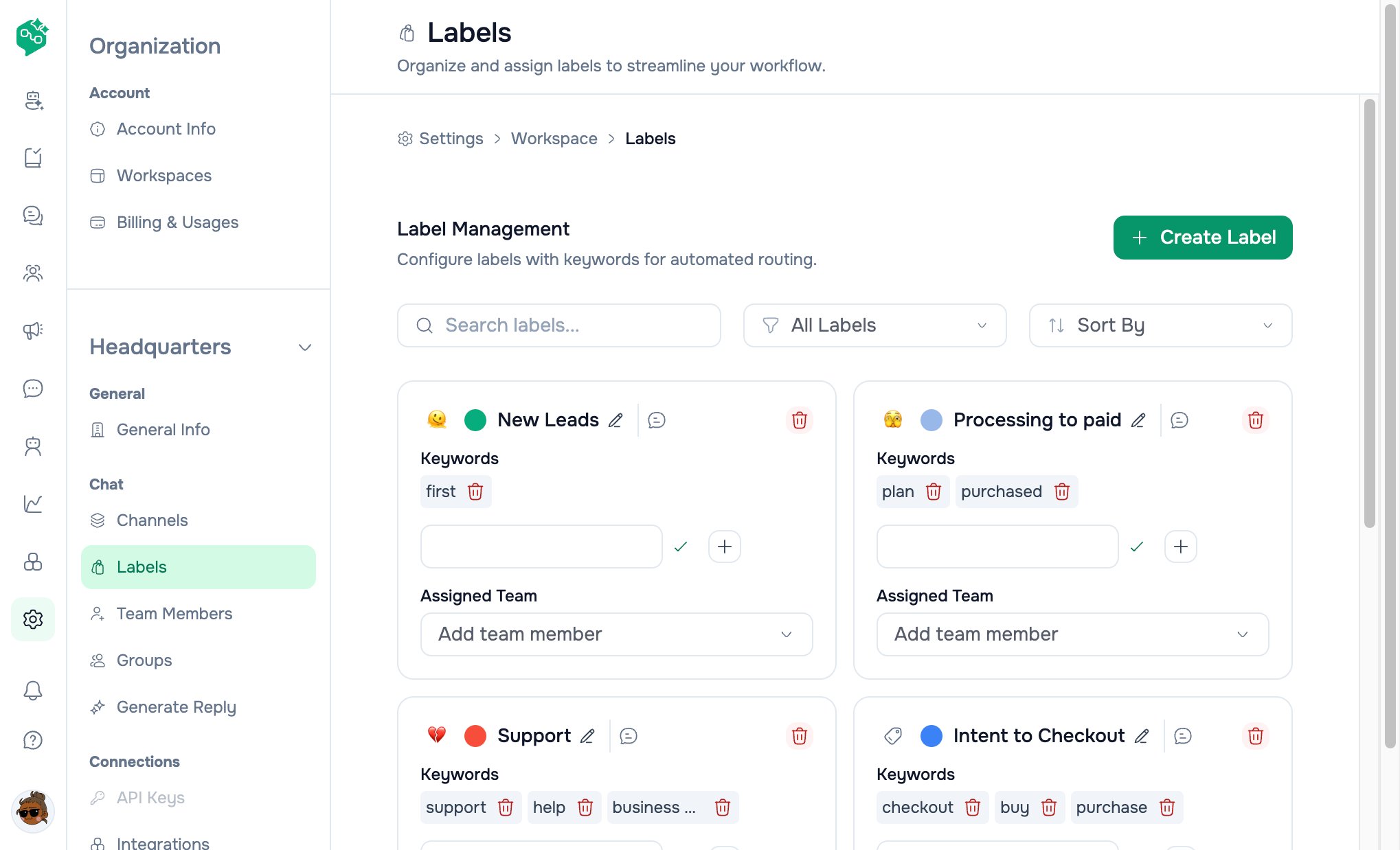
### Step 2 — Create labels for chat
**Accordion title:** *Create labels for chat*\
**Subtitle:** *Organize your inbox with custom tags and categories*
**Body:** Labels help filter chats, assign work, and track topics.
**Button:** **Create Your First Label** → `/settings/workspace/labels`
***
### Step 1 — Connect a communication channel
**Accordion title:** *Connect a communication channel*\
**Subtitle:** *Select where you want to send messages from*
**Body:**
* Explains managing WhatsApp, Messenger, Instagram from workspace settings
* **Manage channels** button → `/settings/workspace/channels`
* Embedded **channel setup video** (YouTube) in the accordion
**What to do:**
1. Click **Manage channels**
2. **Add Channel** → **Channel Catalog**
3. Connect **WhatsApp**, **Messenger**, or **Instagram** (see [channels docs](/channels/workspaces-and-channels-overview))
4. Wait until channel status is **active**
5. Return to **Onboarding** or open **Chat**
**Deep dive:** [First channel & inbox](/getting-started/first-channel-and-inbox) · [WhatsApp](/channels/whatsapp)
***
### Step 2 — Create labels for chat
**Accordion title:** *Create labels for chat*\
**Subtitle:** *Organize your inbox with custom tags and categories*
**Body:** Labels help filter chats, assign work, and track topics.
**Button:** **Create Your First Label** → `/settings/workspace/labels`
 **Recommended starter labels:**
| Label | Use when |
| -------------------- | ------------------ |
| `New` / `Unassigned` | Triage queue |
| `VIP` | Priority customers |
| `Sales` / `Support` | Department routing |
Create at least **two** before campaign volume — onboarding best practice.
**Deep dive:** [Shared inbox & labels](/inbox/shared-inbox-and-labels)
***
### Step 3 — Create AI Agent
**Accordion title:** *Create AI Agent*\
**Subtitle (when done):** *AI agent created*
**Live checklist (Sep 2026):** Step 3 is **Create AI Agent**, not n8n. Integrations stay under **Settings → Workspace → Integrations**.
**What to do:**
1. Open **AI Agents** (`/ai-agents`)
2. **Browse templates** or **Create AI Agent**
3. Save, then [test in the sandbox](/ai-agents/knowledge-sources-and-testing) before assigning live threads
**Related (not this accordion):**
| Feature | Path |
| --------------------------------------------------------------- | --------------------------------------- |
| **Integrations** (Agent Skill, Lovable, MCP, Zapier, Make, n8n) | **Settings → Workspace → Integrations** |
| **n8n** (hosted workflows, Advanced plan) | `/n8n` |
| **Webhooks** | **Settings → Workspace → Webhooks** |
**Tip:** Step 3 is optional on day one. Connect a channel and reply manually first; add a bot when after-hours volume appears.
**Deep dive:** [Creating & training AI Agents](/ai-agents/creating-and-training-agents) · [Integrations overview](/integrations/integrations-and-automation-overview)
***
### Step 4 — Invite your team
**Accordion title:** *Invite your team*\
**Subtitle:** *Collaborate on chats and manage support together*
**Button:** **Add Team Member** → `/settings/workspace/team-members`
**What to do:**
1. Open **Team Members**
2. **Invite** with email and role
3. Teammate accepts via email link
4. They appear in **Chat** for shared inbox work
| Role | Typical use |
| ---------- | --------------------------------- |
| **Member** | Chat-only agents |
| **Admin** | Channels, templates, settings |
| **Owner** | Billing, workspaces, full control |
**Deep dive:** [Channels FAQ — permissions](/channels/channels-faq#permissions--roles)
***
## Part 4 — After onboarding — daily work
### Open Chat
**Path:** Sidebar **Chat** → `/chat`
This is your shared inbox. Every message from connected channels appears here.
### First reply checklist
* [ ] At least one channel **Active**
* [ ] Customer sent an inbound message (or you started outbound where allowed)
* [ ] Reply sent from **Chat** composer
* [ ] Teammate can see the same thread
### Settings you’ll use next
| Goal | Path |
| --------------------- | ---------------------------------------------------------------------------------------------------- |
| Connect more channels | **Settings → Workspace → Channels** |
| WhatsApp templates | **Templates** (`/template`) |
| Campaign send | **Chat** → template composer → **Broadcast** tab (sidebar **Broadcast** page is a placeholder today) |
| Performance | **Analytics** (`/analytics`) |
| Plan & billing | **Settings → Organization → Billing & Usage** |
| Profile | **Settings → Profile** |
### Ask Co-Admin
Open **AI Workspace Co-Admin** and ask in plain language:
* *“How do I connect WhatsApp?”*
* *“What are labels for?”*
* *“How do I invite my team?”*
Co-Admin reads **product docs** for how-to and can use **live workspace tools** for status (*“How many channels are connected?”*).
Co-Admin is **not** a customer-facing bot — see [AI Agents overview](/ai-agents/ai-agents-overview) for bots that talk to your customers.
***
## Navigation map (getting started)
```text theme={null}
Auth
├── /signup Create account
├── /signin Log in
├── /oauth-onboarding Google → org + workspace (first time only)
└── Invite link Join existing workspace
Setup checklist
└── /onboarding 4-step accordion
Step destinations
├── /settings/workspace/channels Step 1
├── /settings/workspace/channels/catalog Add channel
├── /settings/workspace/labels Step 2
├── /ai-agents Step 3
└── /settings/workspace/team-members Step 4
Daily work
└── /chat Shared inbox
```
***
## What good looks like — timelines
### First 30 minutes (owner)
1. Complete account (signup or oauth-onboarding)
2. **Onboarding** Step 1 — one **active** channel
3. **Onboarding** Step 2 — two labels
4. First reply in **Chat**
### First day
* Second teammate invited and has replied
* Labels used on real threads
* Skim **Integrations** / **AI Agents** — don’t need to enable yet
### First week (Luna Home Decor pattern)
| Day | Action |
| --- | ---------------------------------------------------------------- |
| Mon | Connect WhatsApp + Instagram; labels `Orders`, `Delivery`, `VIP` |
| Tue | Invite agents (Chat-only) |
| Wed | Train **Support AI Agent** on FAQ |
| Thu | First **Broadcast** with approved template |
| Fri | Check **Analytics**; ask Co-Admin for open thread count |
See [Welcome — Luna example](/getting-started/welcome).
***
## Troubleshooting
| Problem | Cause | Fix |
| ----------------------------------- | ----------------------------------- | ----------------------------------------------------------- |
| Stuck on `/oauth-onboarding` | Google account has no workspace yet | Complete org + workspace form |
| Redirected to `/signin` | Not logged in | Sign in again |
| Don’t see **Onboarding** in sidebar | **Member** role — chat-only access | Ask owner for admin access, or go to `/onboarding` directly |
| **Manage channels** shows empty | No connections yet | **Add Channel** from catalog |
| No conversations in **Chat** | No inbound message yet | Customer must message connected number/account first |
| Google sign-in cancelled | Closed Google popup | Try **Continue with Google** again |
| “Email already registered” | Account exists | Use **Sign in** or reset password |
| Invited but link invalid | Token used or expired | Ask inviter to resend invite |
| Wrong workspace after login | Multiple workspaces | **Settings** → workspace dropdown → switch |
***
## Related docs
* [Welcome to Vendschat](/getting-started/welcome)
* [First channel & inbox](/getting-started/first-channel-and-inbox)
* [Getting started FAQ](/getting-started/getting-started-faq)
* [Workspaces & channels](/channels/workspaces-and-channels-overview)
* [Billing & plans](/billing/plans-and-usage)
**Recommended starter labels:**
| Label | Use when |
| -------------------- | ------------------ |
| `New` / `Unassigned` | Triage queue |
| `VIP` | Priority customers |
| `Sales` / `Support` | Department routing |
Create at least **two** before campaign volume — onboarding best practice.
**Deep dive:** [Shared inbox & labels](/inbox/shared-inbox-and-labels)
***
### Step 3 — Create AI Agent
**Accordion title:** *Create AI Agent*\
**Subtitle (when done):** *AI agent created*
**Live checklist (Sep 2026):** Step 3 is **Create AI Agent**, not n8n. Integrations stay under **Settings → Workspace → Integrations**.
**What to do:**
1. Open **AI Agents** (`/ai-agents`)
2. **Browse templates** or **Create AI Agent**
3. Save, then [test in the sandbox](/ai-agents/knowledge-sources-and-testing) before assigning live threads
**Related (not this accordion):**
| Feature | Path |
| --------------------------------------------------------------- | --------------------------------------- |
| **Integrations** (Agent Skill, Lovable, MCP, Zapier, Make, n8n) | **Settings → Workspace → Integrations** |
| **n8n** (hosted workflows, Advanced plan) | `/n8n` |
| **Webhooks** | **Settings → Workspace → Webhooks** |
**Tip:** Step 3 is optional on day one. Connect a channel and reply manually first; add a bot when after-hours volume appears.
**Deep dive:** [Creating & training AI Agents](/ai-agents/creating-and-training-agents) · [Integrations overview](/integrations/integrations-and-automation-overview)
***
### Step 4 — Invite your team
**Accordion title:** *Invite your team*\
**Subtitle:** *Collaborate on chats and manage support together*
**Button:** **Add Team Member** → `/settings/workspace/team-members`
**What to do:**
1. Open **Team Members**
2. **Invite** with email and role
3. Teammate accepts via email link
4. They appear in **Chat** for shared inbox work
| Role | Typical use |
| ---------- | --------------------------------- |
| **Member** | Chat-only agents |
| **Admin** | Channels, templates, settings |
| **Owner** | Billing, workspaces, full control |
**Deep dive:** [Channels FAQ — permissions](/channels/channels-faq#permissions--roles)
***
## Part 4 — After onboarding — daily work
### Open Chat
**Path:** Sidebar **Chat** → `/chat`
This is your shared inbox. Every message from connected channels appears here.
### First reply checklist
* [ ] At least one channel **Active**
* [ ] Customer sent an inbound message (or you started outbound where allowed)
* [ ] Reply sent from **Chat** composer
* [ ] Teammate can see the same thread
### Settings you’ll use next
| Goal | Path |
| --------------------- | ---------------------------------------------------------------------------------------------------- |
| Connect more channels | **Settings → Workspace → Channels** |
| WhatsApp templates | **Templates** (`/template`) |
| Campaign send | **Chat** → template composer → **Broadcast** tab (sidebar **Broadcast** page is a placeholder today) |
| Performance | **Analytics** (`/analytics`) |
| Plan & billing | **Settings → Organization → Billing & Usage** |
| Profile | **Settings → Profile** |
### Ask Co-Admin
Open **AI Workspace Co-Admin** and ask in plain language:
* *“How do I connect WhatsApp?”*
* *“What are labels for?”*
* *“How do I invite my team?”*
Co-Admin reads **product docs** for how-to and can use **live workspace tools** for status (*“How many channels are connected?”*).
Co-Admin is **not** a customer-facing bot — see [AI Agents overview](/ai-agents/ai-agents-overview) for bots that talk to your customers.
***
## Navigation map (getting started)
```text theme={null}
Auth
├── /signup Create account
├── /signin Log in
├── /oauth-onboarding Google → org + workspace (first time only)
└── Invite link Join existing workspace
Setup checklist
└── /onboarding 4-step accordion
Step destinations
├── /settings/workspace/channels Step 1
├── /settings/workspace/channels/catalog Add channel
├── /settings/workspace/labels Step 2
├── /ai-agents Step 3
└── /settings/workspace/team-members Step 4
Daily work
└── /chat Shared inbox
```
***
## What good looks like — timelines
### First 30 minutes (owner)
1. Complete account (signup or oauth-onboarding)
2. **Onboarding** Step 1 — one **active** channel
3. **Onboarding** Step 2 — two labels
4. First reply in **Chat**
### First day
* Second teammate invited and has replied
* Labels used on real threads
* Skim **Integrations** / **AI Agents** — don’t need to enable yet
### First week (Luna Home Decor pattern)
| Day | Action |
| --- | ---------------------------------------------------------------- |
| Mon | Connect WhatsApp + Instagram; labels `Orders`, `Delivery`, `VIP` |
| Tue | Invite agents (Chat-only) |
| Wed | Train **Support AI Agent** on FAQ |
| Thu | First **Broadcast** with approved template |
| Fri | Check **Analytics**; ask Co-Admin for open thread count |
See [Welcome — Luna example](/getting-started/welcome).
***
## Troubleshooting
| Problem | Cause | Fix |
| ----------------------------------- | ----------------------------------- | ----------------------------------------------------------- |
| Stuck on `/oauth-onboarding` | Google account has no workspace yet | Complete org + workspace form |
| Redirected to `/signin` | Not logged in | Sign in again |
| Don’t see **Onboarding** in sidebar | **Member** role — chat-only access | Ask owner for admin access, or go to `/onboarding` directly |
| **Manage channels** shows empty | No connections yet | **Add Channel** from catalog |
| No conversations in **Chat** | No inbound message yet | Customer must message connected number/account first |
| Google sign-in cancelled | Closed Google popup | Try **Continue with Google** again |
| “Email already registered” | Account exists | Use **Sign in** or reset password |
| Invited but link invalid | Token used or expired | Ask inviter to resend invite |
| Wrong workspace after login | Multiple workspaces | **Settings** → workspace dropdown → switch |
***
## Related docs
* [Welcome to Vendschat](/getting-started/welcome)
* [First channel & inbox](/getting-started/first-channel-and-inbox)
* [Getting started FAQ](/getting-started/getting-started-faq)
* [Workspaces & channels](/channels/workspaces-and-channels-overview)
* [Billing & plans](/billing/plans-and-usage)