> ## Documentation Index
> Fetch the complete documentation index at: https://docs.vendschat.com/llms.txt
> Use this file to discover all available pages before exploring further.
# Your first channel and inbox
> Get from zero to your first team reply in one sitting — whether you arrived via email signup, Google oauth-onboarding, or the in-app Onboarding checklist.
Get from zero to your first team reply in one sitting — whether you arrived via **email signup**, **Google oauth-onboarding**, or the in-app **Onboarding** checklist.
**Prerequisite:** You have a workspace (you’re past `/oauth-onboarding` if you used Google).\
**Main hub:** [Onboarding & setup guide](/getting-started/onboarding-and-setup-guide)
***
## Quick reference
| Step | Action | Path |
| ---- | --------------- | ------------------------------------------------------------- |
| 1 | Connect channel | **Onboarding** Step 1 → **Manage channels** → **Add Channel** |
| 2 | Create labels | **Onboarding** Step 2 → **Create Your First Label** |
| 3 | First reply | **Chat** → conversation → composer |
| 4 | Invite teammate | **Onboarding** Step 4 → **Add Team Member** |
***
## Example: FreshBite Meal Prep
**FreshBite** delivers healthy meals in Dhaka. Support lead **Anika** has never used a shared inbox before. Her goal: stop answering WhatsApp on a single phone.
### Before you start — open Onboarding (optional but recommended)
**Sidebar → Onboarding** (`/onboarding`) — Step 1 is expanded by default.
***
### Step 1 — Connect WhatsApp
**From Onboarding:** Click **Manage channels** → `/settings/workspace/channels`\
**Or:** **Settings → Workspace → Channels → Add Channel**
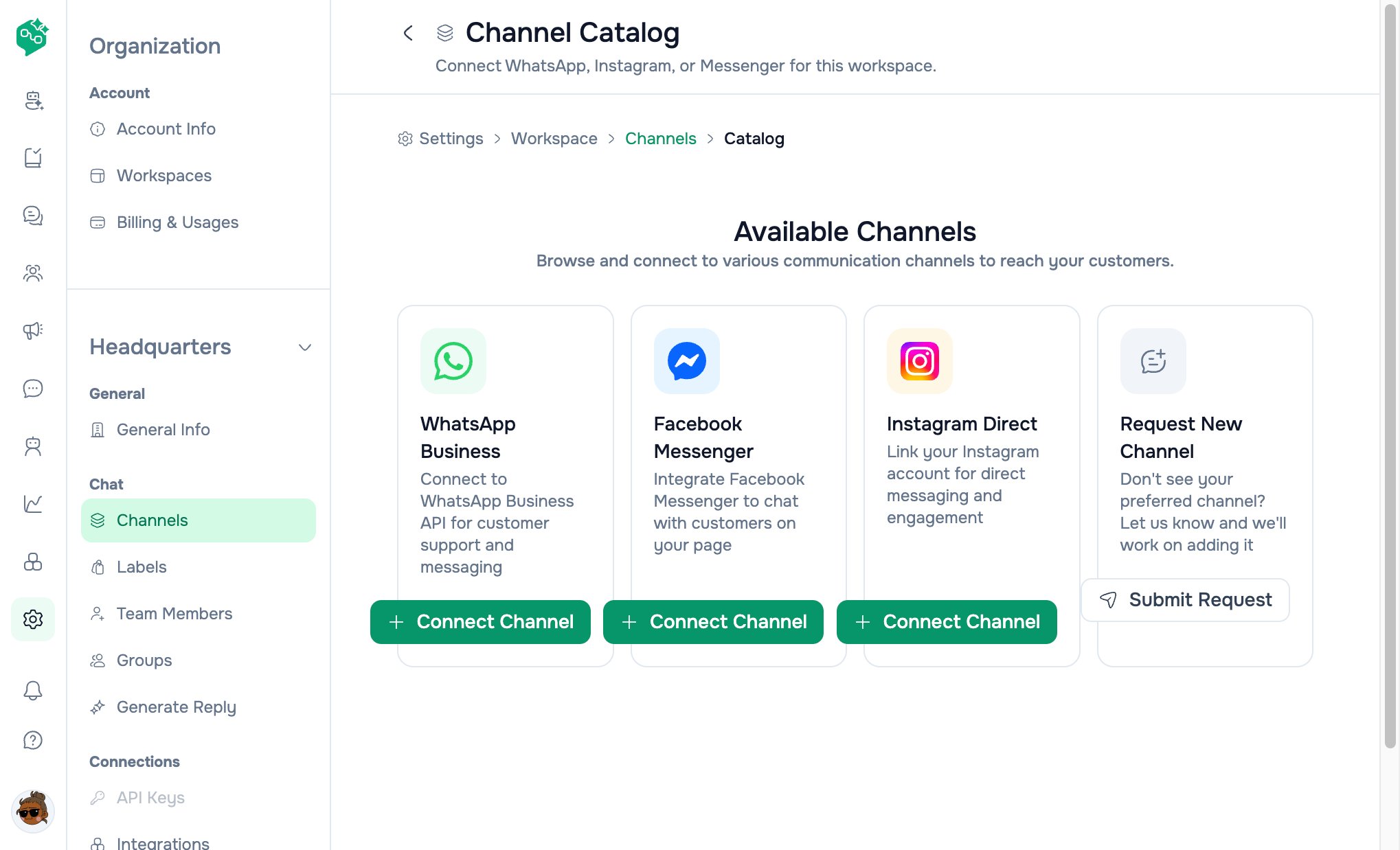 1. **Channel Catalog** → **WhatsApp Business** → **Connect Channel**
2. **Choose use case:**
* **Support only** — inbox + templates only
* **Support, sales & ads** — also Click-to-WhatsApp ads
3. **Prepare** — check authorization box → **Continue**
4. **Connect with Facebook** — complete Meta embedded signup
5. Wait until status is **Active** on the Channels list
**URLs:**
| Page | Path |
| -------------- | --------------------------------------------- |
| Channels list | `/settings/workspace/channels` |
| Catalog | `/settings/workspace/channels/catalog` |
| WhatsApp setup | `/settings/workspace/channels/whatsapp/setup` |
**Tip:** Step 1 on the Onboarding page includes a **video guide** under *“How it works”*.
Deep dive: [WhatsApp](/channels/whatsapp)
***
### Step 2 — Create labels before volume hits
**From Onboarding:** **Create Your First Label** → `/settings/workspace/labels`\
**Or:** **Settings → Workspace → Labels**
1. **Channel Catalog** → **WhatsApp Business** → **Connect Channel**
2. **Choose use case:**
* **Support only** — inbox + templates only
* **Support, sales & ads** — also Click-to-WhatsApp ads
3. **Prepare** — check authorization box → **Continue**
4. **Connect with Facebook** — complete Meta embedded signup
5. Wait until status is **Active** on the Channels list
**URLs:**
| Page | Path |
| -------------- | --------------------------------------------- |
| Channels list | `/settings/workspace/channels` |
| Catalog | `/settings/workspace/channels/catalog` |
| WhatsApp setup | `/settings/workspace/channels/whatsapp/setup` |
**Tip:** Step 1 on the Onboarding page includes a **video guide** under *“How it works”*.
Deep dive: [WhatsApp](/channels/whatsapp)
***
### Step 2 — Create labels before volume hits
**From Onboarding:** **Create Your First Label** → `/settings/workspace/labels`\
**Or:** **Settings → Workspace → Labels**
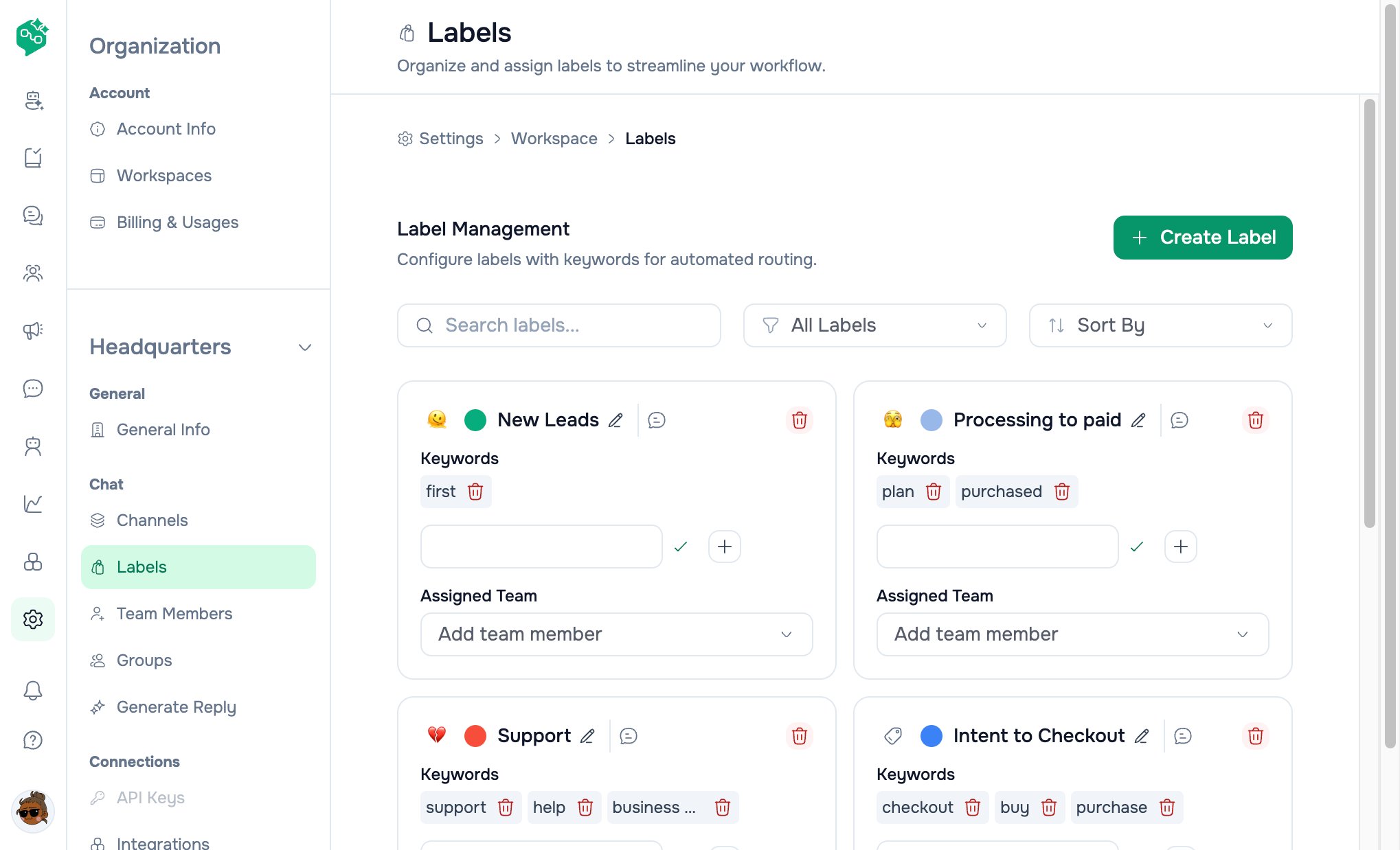 Anika creates three labels:
| Label | Why |
| ---------------- | ---------------- |
| `New order` | Routing to sales |
| `Change address` | Ops team |
| `Complaint` | Manager review |
When a message says “wrong address,” she tags it instantly — no scrolling through mixed threads.
Deep dive: [Shared inbox & labels](/inbox/shared-inbox-and-labels)
***
### Step 3 — First reply in Chat
1. Open **Chat** from the sidebar → `/chat`
2. Click the new conversation (appears when a customer messages your connected number)
3. Type a reply in the composer and send
The customer sees the message on WhatsApp. Anika’s colleague **Rafi** sees the same thread on his laptop — that’s the shared inbox.
**No conversations yet?** A customer must message your connected number first — or your team starts outbound where the channel allows it.
***
### Step 4 — Invite Rafi
**From Onboarding:** **Add Team Member** → `/settings/workspace/team-members`\
**Or:** **Settings → Workspace → Team Members → Invite**
| Role | When to use |
| ---------------------- | ------------------------------------------------------ |
| **Member (Chat-only)** | Rafi should only reply, not change billing or channels |
| **Admin** | Rafi will manage channels and templates |
Rafi accepts the email invite and lands in **Chat**.
***
### Step 5 (optional) — Integrations later
**Settings → Workspace → Integrations** → `/settings/workspace/integrations`
Not required on day one. Come back when you want Agent Skill, Zapier, n8n, or extra tools. Onboarding Step 3 is **Create AI Agent**.
***
## Alternative first channel — Messenger or Instagram
Same Onboarding Step 1 flow; pick a different card in the catalog:
| Channel | Catalog card | Setup path |
| ------------- | ------------------ | ---------------------------------------------- |
| **Messenger** | Facebook Messenger | `/settings/workspace/channels/messenger/setup` |
| **Instagram** | Instagram Direct | `/settings/workspace/channels/instagram/setup` |
Deep dive: [Messenger & Instagram](/channels/messenger-and-instagram)
***
## What good looks like after day one
* ✅ At least one channel **Active**
* ✅ Two or more labels your team actually uses
* ✅ Two teammates who’ve both replied from **Chat**
* ✅ Unread badges going down during the shift
***
## Common first-day questions
**“I don’t see any conversations yet.”**\
A customer must message your connected number first — or your team starts an outbound conversation where the channel allows it.
**“I’m stuck on Google workspace setup.”**\
That’s `/oauth-onboarding` — complete organization name, then you’ll reach **Chat**. See [Onboarding guide](/getting-started/onboarding-and-setup-guide).
**“Where is the onboarding checklist?”**\
**Onboarding** in the sidebar → `/onboarding` — four accordion steps.
**“Can we both reply at once?”**\
Yes. Assign threads so ownership is clear, or use labels to show who’s handling what.
**“Why can’t I type a free WhatsApp message?”**\
Outside the 24-hour customer window you need an approved **template**. See [WhatsApp doc](/channels/whatsapp).
**“Should we turn on AI today?”**\
Usually not on day one. Get comfortable with manual replies, then add an **AI Agent** when the same questions repeat.
**“Where do I get help?”**\
Open **AI Workspace Co-Admin** and ask in plain language — or use the **Resources** panel on the Onboarding page (Help center, Video guides).
***
## Related docs
* [Onboarding & setup guide](/getting-started/onboarding-and-setup-guide)
* [Getting started FAQ](/getting-started/getting-started-faq)
* [Welcome](/getting-started/welcome)
* [Channels overview](/channels/workspaces-and-channels-overview)
Anika creates three labels:
| Label | Why |
| ---------------- | ---------------- |
| `New order` | Routing to sales |
| `Change address` | Ops team |
| `Complaint` | Manager review |
When a message says “wrong address,” she tags it instantly — no scrolling through mixed threads.
Deep dive: [Shared inbox & labels](/inbox/shared-inbox-and-labels)
***
### Step 3 — First reply in Chat
1. Open **Chat** from the sidebar → `/chat`
2. Click the new conversation (appears when a customer messages your connected number)
3. Type a reply in the composer and send
The customer sees the message on WhatsApp. Anika’s colleague **Rafi** sees the same thread on his laptop — that’s the shared inbox.
**No conversations yet?** A customer must message your connected number first — or your team starts outbound where the channel allows it.
***
### Step 4 — Invite Rafi
**From Onboarding:** **Add Team Member** → `/settings/workspace/team-members`\
**Or:** **Settings → Workspace → Team Members → Invite**
| Role | When to use |
| ---------------------- | ------------------------------------------------------ |
| **Member (Chat-only)** | Rafi should only reply, not change billing or channels |
| **Admin** | Rafi will manage channels and templates |
Rafi accepts the email invite and lands in **Chat**.
***
### Step 5 (optional) — Integrations later
**Settings → Workspace → Integrations** → `/settings/workspace/integrations`
Not required on day one. Come back when you want Agent Skill, Zapier, n8n, or extra tools. Onboarding Step 3 is **Create AI Agent**.
***
## Alternative first channel — Messenger or Instagram
Same Onboarding Step 1 flow; pick a different card in the catalog:
| Channel | Catalog card | Setup path |
| ------------- | ------------------ | ---------------------------------------------- |
| **Messenger** | Facebook Messenger | `/settings/workspace/channels/messenger/setup` |
| **Instagram** | Instagram Direct | `/settings/workspace/channels/instagram/setup` |
Deep dive: [Messenger & Instagram](/channels/messenger-and-instagram)
***
## What good looks like after day one
* ✅ At least one channel **Active**
* ✅ Two or more labels your team actually uses
* ✅ Two teammates who’ve both replied from **Chat**
* ✅ Unread badges going down during the shift
***
## Common first-day questions
**“I don’t see any conversations yet.”**\
A customer must message your connected number first — or your team starts an outbound conversation where the channel allows it.
**“I’m stuck on Google workspace setup.”**\
That’s `/oauth-onboarding` — complete organization name, then you’ll reach **Chat**. See [Onboarding guide](/getting-started/onboarding-and-setup-guide).
**“Where is the onboarding checklist?”**\
**Onboarding** in the sidebar → `/onboarding` — four accordion steps.
**“Can we both reply at once?”**\
Yes. Assign threads so ownership is clear, or use labels to show who’s handling what.
**“Why can’t I type a free WhatsApp message?”**\
Outside the 24-hour customer window you need an approved **template**. See [WhatsApp doc](/channels/whatsapp).
**“Should we turn on AI today?”**\
Usually not on day one. Get comfortable with manual replies, then add an **AI Agent** when the same questions repeat.
**“Where do I get help?”**\
Open **AI Workspace Co-Admin** and ask in plain language — or use the **Resources** panel on the Onboarding page (Help center, Video guides).
***
## Related docs
* [Onboarding & setup guide](/getting-started/onboarding-and-setup-guide)
* [Getting started FAQ](/getting-started/getting-started-faq)
* [Welcome](/getting-started/welcome)
* [Channels overview](/channels/workspaces-and-channels-overview)