> ## Documentation Index
> Fetch the complete documentation index at: https://docs.vendschat.com/llms.txt
> Use this file to discover all available pages before exploring further.
# WhatsApp Business on Vendschat
> Connect your business WhatsApp number through Meta’s Cloud API so your whole team shares one inbox — templates, broadcasts, AI Agents, and analytics…
Connect your business WhatsApp number through Meta’s **Cloud API** so your whole team shares one inbox — templates, broadcasts, AI Agents, and analytics included.
**Who this is for:** Owners and admins setting up WhatsApp, agents asking why they can’t free-type a reply, and anyone troubleshooting connection status.
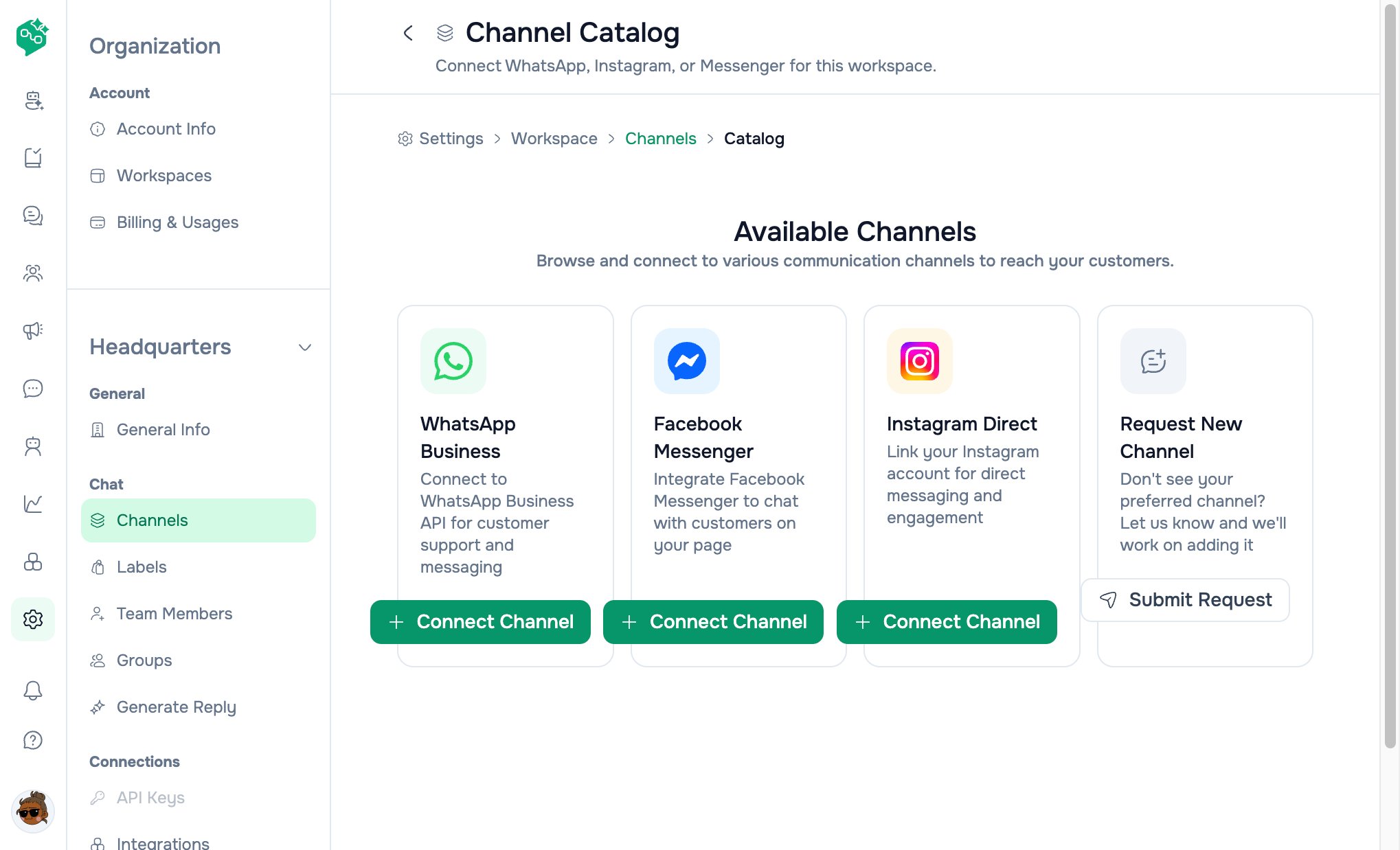
**Where to go:** **Settings → Workspace → Channels** → **Add Channel** → **WhatsApp Business**, or directly **Settings → Workspace → Channels → WhatsApp setup** (`/settings/workspace/channels/whatsapp/setup`).

 ***
## Quick reference
| Topic | Answer |
| ------------------------------ | ---------------------------------------------------------------------------- |
| API type | **WhatsApp Cloud API** (Meta embedded signup) |
| Setup steps (new) | **Choose use case** → **Prepare** → **Connect with Facebook** |
| Setup steps (manage) | **Prepare** → **Connect** (use case skipped) |
| Use case: Support only | Inbox, replies, templates — **no** Click-to-WhatsApp ads |
| Use case: Support, sales & ads | Support features **plus** Click-to-WhatsApp ads & Meta sales signals |
| After connect | Messages appear in **Chat**; outbound rules follow WhatsApp 24-hour window |
| Multiple numbers | **Yes** — connect again from catalog; each number is a separate channel card |
| Manage existing | **Channels** list → click card → **Manage** |
| Full metrics | **Analytics** → WhatsApp channel card (delivery, read rates, exports) |
| Status values | **pending**, **active**, **disconnected**, **error** |
***
## Why teams connect WhatsApp
* **Official Business API** — Verified business identity, approved templates, scale Meta expects
* **Shared inbox** — Every agent sees the same threads in **Chat**
* **Automation-ready** — AI Agents, broadcasts, webhooks, product catalog messages
* **One number, many agents** — No more passing a single phone around the office
***
## Example: Metro Clinics
**Metro Clinics** runs three locations. Patients message one WhatsApp number for appointments.
| Step | Action |
| --------- | ------------------------------------------------------------------------------------------------- |
| Workspace | Confirm **Metro Clinics** workspace is selected in Settings |
| Setup | **Settings → Workspace → Channels → Add Channel → WhatsApp** |
| Use case | **Support only** — they don’t run Click-to-WhatsApp ads |
| Prepare | Check authorization box; continue |
| Connect | **Log in with Facebook** → complete Meta embedded signup (QR scan if using WhatsApp Business app) |
| Labels | `Booking`, `Results`, `Insurance` in **Settings → Workspace → Labels** |
| Templates | `appointment_reminder` with date + “Confirm” button |
| Team | Receptionists get **Member** (Chat-only); managers get **Admin** |
When a patient messages after hours, their **AI Agent** (Receptionist template) collects preferred date — human confirms next morning.
***
## Navigation — step by step (new connection)
### 1. Open the right workspace
WhatsApp connects to the **current workspace** only.
1. Open **Settings**
2. If you have multiple workspaces, use the **workspace name dropdown** at the top of the Workspace section
3. Select the workspace that should own this number (e.g. `Client — BloomBox`)
### 2. Open Channel Catalog
| Path | URL |
| --------------------------------------------------------- | -------------------------------------- |
| **Settings → Workspace → Channels → Add Channel** | `/settings/workspace/channels/catalog` |
| Or click **Browse Channels** dashed card on Channels list | same |
Click **WhatsApp Business** → **Connect Channel**.
### 3. Choose use case (first-time connect only)
Page title: **Connect WhatsApp (Cloud API)**
| Option | When to pick | What you get |
| ------------------------ | ----------------------------------------------------------------------------------------------- | --------------------------------------------------------------------------------- |
| **Support only** | Customers message you on WhatsApp; you do **not** run paid Facebook/Instagram ads into WhatsApp | Shared inbox, replies, message templates |
| **Support, sales & ads** | You run **Click-to-WhatsApp** ads on Facebook or Instagram | Everything in Support only **plus** ad attribution and sales signals sent to Meta |
**Pick guidance:**
* Clinics, delivery, internal help desks → **Support only**
* E-commerce brands driving ad traffic to WhatsApp → **Support, sales & ads**
You can connect **another number later** with the other use case if needed. Changing use case on an existing channel: open setup without `channelId` and pick again at step 1.
Direct links with use case pre-selected:
* Support only: `/settings/workspace/channels/whatsapp/setup?mode=messaging`
* Support, sales & ads: `/settings/workspace/channels/whatsapp/setup?mode=ads`
### 4. Prepare
Step tab: **Prepare**
Before continuing, confirm:
* You use a **Facebook or Meta login** with admin access to your Business Portfolio or WhatsApp assets
* In Meta’s window you will choose **Connect a WhatsApp Business app**, **Create a WhatsApp Business account**, or select an existing account
Check: *“I’m authorized to connect WhatsApp for this business and I’m ready to sign in with Facebook on the next step.”*
Click **Continue**.
### 5. Connect with Facebook
Step tab: **Connect**
1. Optional: watch the embedded Meta onboarding video on the page
2. Click **Log in with Facebook** (or **Continue WhatsApp signup** if already signed in)
3. Complete Meta’s embedded signup flow in the popup/window:
* Connect WhatsApp Business app (may require **QR scan** on phone)
* Or create/select WABA and phone number
4. Wait for **“Saving this connection to your workspace…”**
5. Success banner shows: name, **Phone number ID**, **Status**
**Meta signup paths:**
| Embedded signup event | Meaning |
| ----------------------------------------- | ------------------------------------------------------------------------------------------------------------------------- |
| `FINISH` | New number / standard Cloud API flow — includes `phone_number_id` |
| `FINISH_WHATSAPP_BUSINESS_APP_ONBOARDING` | Connect existing **WhatsApp Business app** — often requires **QR scan** on phone; backend resolves phone number from WABA |
If signup stalls, use **Start over** on the Connect step to log out of Meta and retry.
**Use-case config:** **Support only** and **Support, sales & ads** use different Meta embedded-signup configuration IDs (`NEXT_PUBLIC_WHATSAPP_EMBEDDED_SIGNUP_CONFIG_ID` vs ads config). If ads mode fails to load, **Support only** may still work — contact support.
Tokens are stored **on the server** — agents never handle API keys in Chat.
### 6. Verify on Channels list
Go to **Settings → Workspace → Channels** (`/settings/workspace/channels`).
Your card shows:
* Display name (or “WhatsApp Business”)
* **Channel ID:** phone number ID (Meta identifier)
* **Manage** button
Status should become **active** when Meta verification completes. **pending** means finish Meta Business Manager steps.
***
## Navigation — manage / reconnect existing channel
1. **Settings → Workspace → Channels**
2. Click the WhatsApp card (or **Manage**)
3. Opens: `/settings/workspace/channels/whatsapp/setup?channelId={id}`
4. **Managing this channel** banner shows:
* Display name, **Status**, **Connected** date
* **Phone** (display number), **Phone number ID**, **WABA ID**, **Business Portfolio** (when available)
5. Steps: **Prepare** → **Connect** — reconnect via Facebook if **disconnected** or **error**
***
## What each status means
| Status | Meaning | What to do |
| ---------------- | ------------------------------------------------ | --------------------------------------------------------------- |
| **active** | Messages flow into **Chat** | No action — monitor health in Analytics |
| **pending** | Connection started; Meta verification incomplete | Finish embedded signup; check Meta Business Manager |
| **disconnected** | Token expired or access revoked in Meta | **Manage** → **Connect** → sign in again |
| **error** | Integration failure | Reconnect; verify Meta permissions; contact support if persists |
***
## After you’re live
| You want to… | Go to… |
| ------------------------------- | ------------------------------------------------------- |
| Reply to customers | **Chat** |
| Send approved outbound messages | **Templates** |
| Message many contacts at once | **Broadcast** |
| Auto-answer FAQs | **AI Agents** |
| Send product cards | **Chat** composer (with catalog connected in Meta) |
| See delivery performance | **Analytics** → click WhatsApp channel → full dashboard |
| Reconnect number | **Settings → Workspace → Channels** → **Manage** |
### WhatsApp 24-hour messaging window
| Situation | What agents see |
| -------------------------------------- | ---------------------------------------------------- |
| Customer messaged within last 24 hours | Free-form replies in **Chat** composer |
| Outside 24-hour window | Must use an **approved template** from **Templates** |
Co-Admin should explain this policy when users ask “why can’t I type?” — it’s Meta’s rule, not a Vendschat bug.
### Multiple agents on one number
Yes. Use **assignments** and **labels** so ownership is clear. All agents share the same thread in **Chat**.
### AI on WhatsApp
Assign an **AI Agent** to a thread or set a workspace default agent. Customer-facing bots follow the same channel rules (templates outside 24h). See [AI Agents overview](/ai-agents/ai-agents-overview).
***
## Troubleshooting
| Problem | Likely cause | Fix |
| ------------------------------------------------------- | ---------------------------------------------------------------------- | -------------------------------------------------------------------------- |
| “No active workspace in this session” | Session lost workspace context | Reload; open Settings from dashboard; switch workspace |
| “Meta did not return a WhatsApp business account ID” | Embedded signup incomplete | Finish every Meta step including QR scan; **Start over** |
| “Still waiting for Meta…” (12s timeout) | Meta window closed early | Re-open signup; complete WABA + number selection |
| Wrong number connected | Selected wrong asset in Meta | Reconnect correct number via **Manage**; revoke in Meta if needed |
| “This number is already connected to another workspace” | HTTP **409** — same phone number ID in a different Vendschat workspace | Disconnect from other workspace or use a different number |
| Support, sales & ads not configured | Product env not set for ads flow | Contact Vendschat support / admin — **Support only** may still work |
| Channel card missing after success | List not refreshed | Refresh **Channels** page; check correct workspace |
| Messages not in Chat | Status not **active** | Wait for **pending** → **active**; customer must message first for inbound |
***
## Plan & workspace notes
* WhatsApp is included on **all paid plans** (Starter, Growth, Advanced)
* Each **workspace** has its own WhatsApp connections — numbers don’t copy when you create a new workspace
* **Contacts** billed at **organization** level, not per channel
* **Advanced** plan: run separate workspaces per client brand, each with its own WhatsApp number
***
## Related docs
* [Channels overview](/channels/channels-overview)
* [Workspaces & channels overview](/channels/workspaces-and-channels-overview)
* [Channels FAQ](/channels/channels-faq)
* [First channel & inbox](/getting-started/first-channel-and-inbox)
* [Analytics — WhatsApp](/analytics/channel-performance)
* [Template messages overview](/templates/templates-overview) · [Broadcasts](/broadcasts)
***
## Quick reference
| Topic | Answer |
| ------------------------------ | ---------------------------------------------------------------------------- |
| API type | **WhatsApp Cloud API** (Meta embedded signup) |
| Setup steps (new) | **Choose use case** → **Prepare** → **Connect with Facebook** |
| Setup steps (manage) | **Prepare** → **Connect** (use case skipped) |
| Use case: Support only | Inbox, replies, templates — **no** Click-to-WhatsApp ads |
| Use case: Support, sales & ads | Support features **plus** Click-to-WhatsApp ads & Meta sales signals |
| After connect | Messages appear in **Chat**; outbound rules follow WhatsApp 24-hour window |
| Multiple numbers | **Yes** — connect again from catalog; each number is a separate channel card |
| Manage existing | **Channels** list → click card → **Manage** |
| Full metrics | **Analytics** → WhatsApp channel card (delivery, read rates, exports) |
| Status values | **pending**, **active**, **disconnected**, **error** |
***
## Why teams connect WhatsApp
* **Official Business API** — Verified business identity, approved templates, scale Meta expects
* **Shared inbox** — Every agent sees the same threads in **Chat**
* **Automation-ready** — AI Agents, broadcasts, webhooks, product catalog messages
* **One number, many agents** — No more passing a single phone around the office
***
## Example: Metro Clinics
**Metro Clinics** runs three locations. Patients message one WhatsApp number for appointments.
| Step | Action |
| --------- | ------------------------------------------------------------------------------------------------- |
| Workspace | Confirm **Metro Clinics** workspace is selected in Settings |
| Setup | **Settings → Workspace → Channels → Add Channel → WhatsApp** |
| Use case | **Support only** — they don’t run Click-to-WhatsApp ads |
| Prepare | Check authorization box; continue |
| Connect | **Log in with Facebook** → complete Meta embedded signup (QR scan if using WhatsApp Business app) |
| Labels | `Booking`, `Results`, `Insurance` in **Settings → Workspace → Labels** |
| Templates | `appointment_reminder` with date + “Confirm” button |
| Team | Receptionists get **Member** (Chat-only); managers get **Admin** |
When a patient messages after hours, their **AI Agent** (Receptionist template) collects preferred date — human confirms next morning.
***
## Navigation — step by step (new connection)
### 1. Open the right workspace
WhatsApp connects to the **current workspace** only.
1. Open **Settings**
2. If you have multiple workspaces, use the **workspace name dropdown** at the top of the Workspace section
3. Select the workspace that should own this number (e.g. `Client — BloomBox`)
### 2. Open Channel Catalog
| Path | URL |
| --------------------------------------------------------- | -------------------------------------- |
| **Settings → Workspace → Channels → Add Channel** | `/settings/workspace/channels/catalog` |
| Or click **Browse Channels** dashed card on Channels list | same |
Click **WhatsApp Business** → **Connect Channel**.
### 3. Choose use case (first-time connect only)
Page title: **Connect WhatsApp (Cloud API)**
| Option | When to pick | What you get |
| ------------------------ | ----------------------------------------------------------------------------------------------- | --------------------------------------------------------------------------------- |
| **Support only** | Customers message you on WhatsApp; you do **not** run paid Facebook/Instagram ads into WhatsApp | Shared inbox, replies, message templates |
| **Support, sales & ads** | You run **Click-to-WhatsApp** ads on Facebook or Instagram | Everything in Support only **plus** ad attribution and sales signals sent to Meta |
**Pick guidance:**
* Clinics, delivery, internal help desks → **Support only**
* E-commerce brands driving ad traffic to WhatsApp → **Support, sales & ads**
You can connect **another number later** with the other use case if needed. Changing use case on an existing channel: open setup without `channelId` and pick again at step 1.
Direct links with use case pre-selected:
* Support only: `/settings/workspace/channels/whatsapp/setup?mode=messaging`
* Support, sales & ads: `/settings/workspace/channels/whatsapp/setup?mode=ads`
### 4. Prepare
Step tab: **Prepare**
Before continuing, confirm:
* You use a **Facebook or Meta login** with admin access to your Business Portfolio or WhatsApp assets
* In Meta’s window you will choose **Connect a WhatsApp Business app**, **Create a WhatsApp Business account**, or select an existing account
Check: *“I’m authorized to connect WhatsApp for this business and I’m ready to sign in with Facebook on the next step.”*
Click **Continue**.
### 5. Connect with Facebook
Step tab: **Connect**
1. Optional: watch the embedded Meta onboarding video on the page
2. Click **Log in with Facebook** (or **Continue WhatsApp signup** if already signed in)
3. Complete Meta’s embedded signup flow in the popup/window:
* Connect WhatsApp Business app (may require **QR scan** on phone)
* Or create/select WABA and phone number
4. Wait for **“Saving this connection to your workspace…”**
5. Success banner shows: name, **Phone number ID**, **Status**
**Meta signup paths:**
| Embedded signup event | Meaning |
| ----------------------------------------- | ------------------------------------------------------------------------------------------------------------------------- |
| `FINISH` | New number / standard Cloud API flow — includes `phone_number_id` |
| `FINISH_WHATSAPP_BUSINESS_APP_ONBOARDING` | Connect existing **WhatsApp Business app** — often requires **QR scan** on phone; backend resolves phone number from WABA |
If signup stalls, use **Start over** on the Connect step to log out of Meta and retry.
**Use-case config:** **Support only** and **Support, sales & ads** use different Meta embedded-signup configuration IDs (`NEXT_PUBLIC_WHATSAPP_EMBEDDED_SIGNUP_CONFIG_ID` vs ads config). If ads mode fails to load, **Support only** may still work — contact support.
Tokens are stored **on the server** — agents never handle API keys in Chat.
### 6. Verify on Channels list
Go to **Settings → Workspace → Channels** (`/settings/workspace/channels`).
Your card shows:
* Display name (or “WhatsApp Business”)
* **Channel ID:** phone number ID (Meta identifier)
* **Manage** button
Status should become **active** when Meta verification completes. **pending** means finish Meta Business Manager steps.
***
## Navigation — manage / reconnect existing channel
1. **Settings → Workspace → Channels**
2. Click the WhatsApp card (or **Manage**)
3. Opens: `/settings/workspace/channels/whatsapp/setup?channelId={id}`
4. **Managing this channel** banner shows:
* Display name, **Status**, **Connected** date
* **Phone** (display number), **Phone number ID**, **WABA ID**, **Business Portfolio** (when available)
5. Steps: **Prepare** → **Connect** — reconnect via Facebook if **disconnected** or **error**
***
## What each status means
| Status | Meaning | What to do |
| ---------------- | ------------------------------------------------ | --------------------------------------------------------------- |
| **active** | Messages flow into **Chat** | No action — monitor health in Analytics |
| **pending** | Connection started; Meta verification incomplete | Finish embedded signup; check Meta Business Manager |
| **disconnected** | Token expired or access revoked in Meta | **Manage** → **Connect** → sign in again |
| **error** | Integration failure | Reconnect; verify Meta permissions; contact support if persists |
***
## After you’re live
| You want to… | Go to… |
| ------------------------------- | ------------------------------------------------------- |
| Reply to customers | **Chat** |
| Send approved outbound messages | **Templates** |
| Message many contacts at once | **Broadcast** |
| Auto-answer FAQs | **AI Agents** |
| Send product cards | **Chat** composer (with catalog connected in Meta) |
| See delivery performance | **Analytics** → click WhatsApp channel → full dashboard |
| Reconnect number | **Settings → Workspace → Channels** → **Manage** |
### WhatsApp 24-hour messaging window
| Situation | What agents see |
| -------------------------------------- | ---------------------------------------------------- |
| Customer messaged within last 24 hours | Free-form replies in **Chat** composer |
| Outside 24-hour window | Must use an **approved template** from **Templates** |
Co-Admin should explain this policy when users ask “why can’t I type?” — it’s Meta’s rule, not a Vendschat bug.
### Multiple agents on one number
Yes. Use **assignments** and **labels** so ownership is clear. All agents share the same thread in **Chat**.
### AI on WhatsApp
Assign an **AI Agent** to a thread or set a workspace default agent. Customer-facing bots follow the same channel rules (templates outside 24h). See [AI Agents overview](/ai-agents/ai-agents-overview).
***
## Troubleshooting
| Problem | Likely cause | Fix |
| ------------------------------------------------------- | ---------------------------------------------------------------------- | -------------------------------------------------------------------------- |
| “No active workspace in this session” | Session lost workspace context | Reload; open Settings from dashboard; switch workspace |
| “Meta did not return a WhatsApp business account ID” | Embedded signup incomplete | Finish every Meta step including QR scan; **Start over** |
| “Still waiting for Meta…” (12s timeout) | Meta window closed early | Re-open signup; complete WABA + number selection |
| Wrong number connected | Selected wrong asset in Meta | Reconnect correct number via **Manage**; revoke in Meta if needed |
| “This number is already connected to another workspace” | HTTP **409** — same phone number ID in a different Vendschat workspace | Disconnect from other workspace or use a different number |
| Support, sales & ads not configured | Product env not set for ads flow | Contact Vendschat support / admin — **Support only** may still work |
| Channel card missing after success | List not refreshed | Refresh **Channels** page; check correct workspace |
| Messages not in Chat | Status not **active** | Wait for **pending** → **active**; customer must message first for inbound |
***
## Plan & workspace notes
* WhatsApp is included on **all paid plans** (Starter, Growth, Advanced)
* Each **workspace** has its own WhatsApp connections — numbers don’t copy when you create a new workspace
* **Contacts** billed at **organization** level, not per channel
* **Advanced** plan: run separate workspaces per client brand, each with its own WhatsApp number
***
## Related docs
* [Channels overview](/channels/channels-overview)
* [Workspaces & channels overview](/channels/workspaces-and-channels-overview)
* [Channels FAQ](/channels/channels-faq)
* [First channel & inbox](/getting-started/first-channel-and-inbox)
* [Analytics — WhatsApp](/analytics/channel-performance)
* [Template messages overview](/templates/templates-overview) · [Broadcasts](/broadcasts)