

 ***
## Quick reference
| Topic | Messenger | Instagram Direct |
| -------------------- | ---------------------------------------------- | -------------------------------------------------------- |
| Auth method | **Meta Login for Business** (Facebook) | **Instagram Business Login** (popup) |
| Setup steps | **Prepare** → **Connect with Facebook** | **Prepare** → **Connect with Instagram** |
| Manage steps | Same — opens at **Connect** when `?channelId=` | Same |
| Identifier on card | **Page ID** | **Instagram User ID** (+ `@username` when available) |
| Prerequisite | Facebook Page with **Messaging** enabled | **Professional** (business or creator) Instagram account |
| Linked Facebook Page | Required (Page messaging) | **Not required** for this login flow |
| Popup blockers | Meta uses Facebook SDK in-page | **Allow popups** for Instagram sign-in window |
| Analytics | Per-channel card on **Analytics** home | Same |
***
## Facebook Messenger
**Best for:** Brands with an active Facebook Page — product questions, order DMs, ad comment follow-ups.
### Example: PagePop Snacks
PagePop runs Facebook ads to their Page. Customers ask “ships to Chittagong?” in Messenger.
| Step | Action |
| --------- | ----------------------------------------------------------------------- |
| Workspace | Select **PagePop** workspace in Settings dropdown |
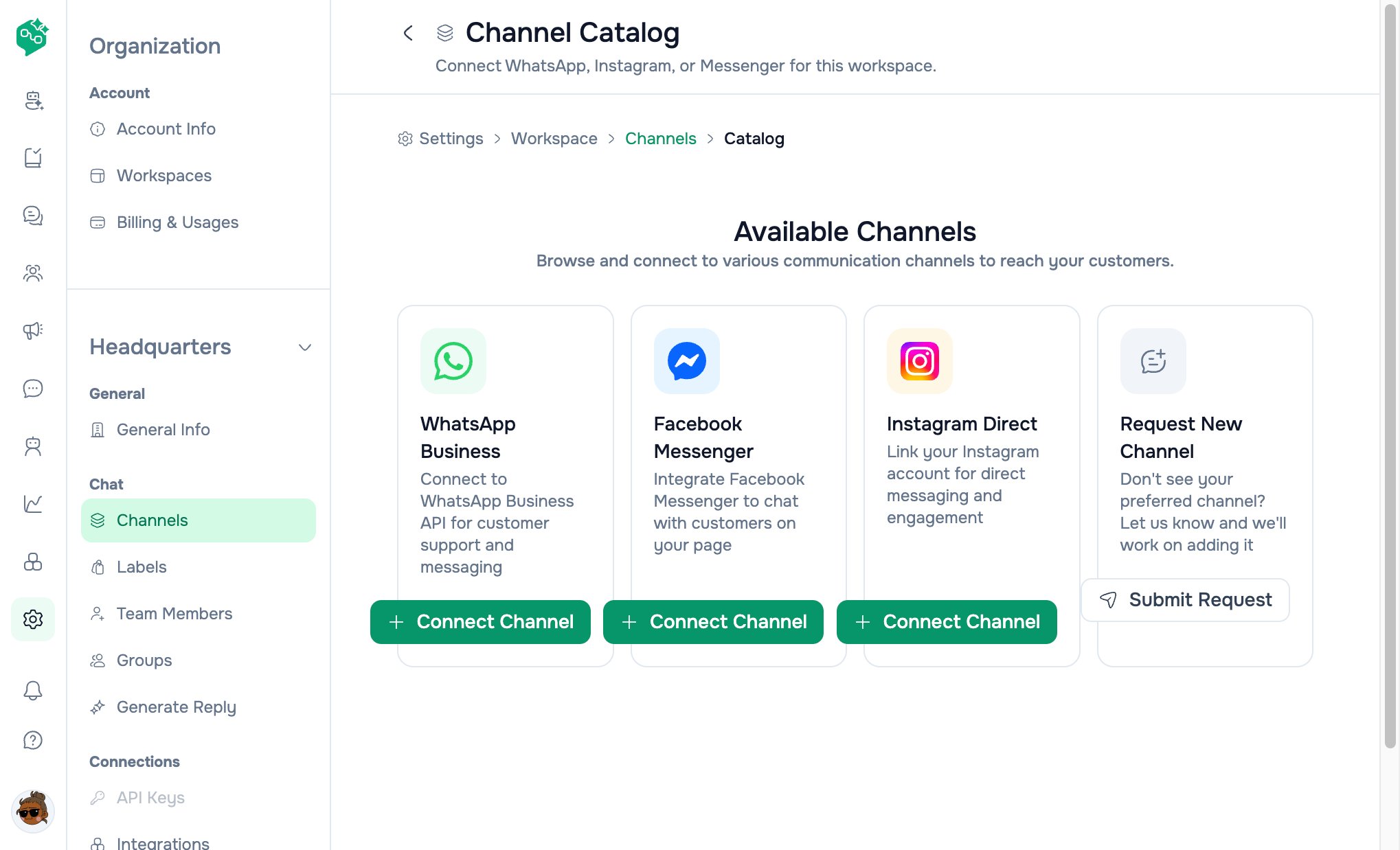
| Catalog | **Settings → Workspace → Channels → Add Channel → Facebook Messenger** |
| Prepare | Confirm Page admin access + messaging enabled |
| Connect | **Log in with Facebook** → select the Page |
| Chat | Messages appear with Messenger badge; filter **Chat** to Messenger only |
| Team | Social manager + support lead share the queue |
***
### Messenger setup — step by step (new connection)
#### 1. Open Channel Catalog
**Settings → Workspace → Channels → Add Channel** → click **Facebook Messenger** → **Connect Channel**.
#### 2. Prepare
Page title: **Connect Messenger**
Confirm:
* Your Meta login can manage the **Facebook Page** you want to connect
* **Messaging** is enabled on that Page for customer conversations
Check: *“I’m authorized to connect Messenger for this business.”*
Click **Continue**.
#### 3. Connect with Facebook
* Click **Log in with Facebook**
* Select the Page when Meta prompts
* Wait for **“Saving this Messenger connection to your workspace…”**
* Success shows: **Page** name, **Page ID**, **Status**
Description in app: *“Uses Meta Login for Business with Page messaging permissions.”*
#### 4. Verify
**Settings → Workspace → Channels** — card shows Page name and **Channel ID** (Page ID).
***
### Messenger — manage / reconnect
1. **Settings → Workspace → Channels** → click Messenger card
2. URL: `/settings/workspace/channels/messenger/setup?channelId={id}`
3. **Managing this channel** banner: name, status, connected date, **Page ID**, category (if stored)
4. Jumps to **Connect** step — use **Connect with Facebook** to reconnect
**Disconnect:** No in-app disconnect button — revoke the app in Meta Page settings or contact **support**.
***
## Instagram Direct
**Best for:** Social sellers, influencers, and brands living in Instagram DMs and story replies.
### Example: Kaya Skincare
Kaya launches a serum via Instagram stories. Story replies flood in.
| Step | Action |
| --------- | -------------------------------------------------------------------- |
| Workspace | **Kaya Skincare** workspace selected |
| Catalog | **Settings → Workspace → Channels → Add Channel → Instagram Direct** |
| Prepare | Professional Instagram account; messaging authorization |
| Connect | **Connect with Instagram** → popup sign-in |
| Chat | Filter **Chat** to Instagram during launch week |
| Labels | `Launch-Apr` on story replies; assign **Sara** |
***
### Instagram setup — step by step (new connection)
#### 1. Open Channel Catalog
**Settings → Workspace → Channels → Add Channel** → **Instagram Direct** → **Connect Channel**.
#### 2. Prepare
Page title: **Connect Instagram**
Confirm:
* You will sign in with the **Instagram professional** (business or creator) account you want
* A linked Facebook Page is **not required** for this flow
* You’re authorized to grant **Instagram Direct messaging** access
Check: *“I’m authorized to connect Instagram messaging for this business.”*
Click **Continue**.
#### 3. Connect with Instagram
* Click **Connect with Instagram**
* A **popup window** opens — complete Instagram sign-in and grant messaging access
* If popup is blocked: allow popups for Vendschat, then try again
* Wait for **“Saving this Instagram connection to your workspace…”**
* Success shows: account name, `@username` (if available), **Instagram User ID**, **Status**
Description in app: *“Uses Instagram Business Login (Instagram API with Instagram Login).”*
#### 4. Verify
**Settings → Workspace → Channels** — card may show `@username` as title when metadata includes `ig_username`.
***
### Instagram — manage / reconnect
1. **Settings → Workspace → Channels** → click Instagram card
2. URL: `/settings/workspace/channels/instagram/setup?channelId={id}`
3. Banner shows display name, `@username`, identifier, status, connected date
4. **Connect with Instagram** to reconnect
**Disconnect:** No in-app disconnect button — revoke access in Instagram/Meta or contact support.
***
## Status meanings (both channels)
| Status | Meaning | Action |
| ---------------- | -------------------------- | ---------------------------------------- |
| **active** | DMs flow into **Chat** | None |
| **pending** | Setup incomplete | Finish OAuth |
| **disconnected** | Token revoked or expired | **Manage** → reconnect |
| **error** | Save or permission failure | Reconnect; check Meta/IG app permissions |
***
## One contact, multiple channels
Vendschat links **conversation history** when the same person messages on different channels. Your team sees context instead of starting from zero.
*Example: Customer DMs on Instagram, then sends order proof on WhatsApp — both appear in their contact timeline in **Chat**.*
**Important:** Channels belong to one **workspace**. Cross-channel identity is within that workspace’s contacts — not across separate workspaces.
***
## How Messenger & Instagram connect to the rest of Vendschat
| Feature | Behavior |
| ------------------ | ------------------------------------------------------------------------------------------------------------------------------------------- |
| **Chat** | Threads show channel badge (Messenger / Instagram); filter by channel type |
| **Labels** | Same labels as WhatsApp — e.g. `Drop-Mar`, `Influencer-Code` |
| **Generate Reply** | Draft assistance in composer — consistent voice during busy launches |
| **AI Agents** | Can reply on Messenger/Instagram threads when assigned |
| **Templates** | Primarily **WhatsApp** — Messenger/IG use session messaging rules |
| **Analytics** | Channel cards on **Analytics** home; **full metrics dashboard today is WhatsApp-focused** — see [Analytics](/analytics/channel-performance) |
| **Broadcasts** | **WhatsApp** campaigns — not Messenger/Instagram bulk send in product |
### Entry from Analytics
**Analytics** home lists connected channels. Dashed **Connect new channel** card links to **Settings → Workspace → Channels** (not directly to catalog — user can then **Add Channel**).
Per-channel analytics URLs:
* Messenger: `/analytics/messenger/{channelId}`
* Instagram: `/analytics/instagram/{channelId}`
***
## Tips for social-heavy teams
| Tip | Why |
| ------------------------------------ | ---------------------------------------------------- |
| Use labels per campaign | `Drop-Mar`, `Influencer-Code` — filter and report |
| Pair with **Generate Reply** | Keep voice consistent during live events |
| Don’t enable AI 24/7 on day one | Watch real DMs first, then train knowledge |
| Allow Instagram popups before launch | Avoid blocked sign-in during setup crunch |
| Verify Page messaging (Messenger) | Disabled messaging = no customer DMs in Vendschat |
| Check **Analytics** per channel | Compare channel volume; WhatsApp has richest metrics |
***
## Troubleshooting
| Problem | Channel | Fix |
| --------------------------------- | --------- | -------------------------------------------------------- |
| Popup blocked | Instagram | Allow popups; retry **Connect with Instagram** |
| “Instagram sign-in was cancelled” | Instagram | Complete popup; don’t close early |
| “Sign-in could not be verified” | Instagram | Retry connect (state mismatch) |
| No Page in Meta picker | Messenger | Use account with Page admin role |
| Messages not appearing | Both | Status must be **active**; customer must send inbound DM |
| Wrong @ handle on card | Instagram | Reconnect correct professional account |
| “No active workspace” | Both | Reload Settings; switch workspace |
***
## Connect checklist
* [ ] Correct **workspace** selected in Settings
* [ ] Meta / Instagram **admin** access on the account you’re connecting
* [ ] **Messaging enabled** on Facebook Page (Messenger)
* [ ] **Professional / Business** Instagram account (Instagram Direct)
* [ ] Popups allowed (Instagram)
* [ ] At least two **labels** defined before a big campaign
* [ ] One teammate invited so you’re not solo on launch night
* [ ] Test inbound DM appears in **Chat**
***
## Related docs
* [Channels overview](/channels/channels-overview)
* [Workspaces & channels overview](/channels/workspaces-and-channels-overview)
* [WhatsApp](/channels/whatsapp)
* [Channels FAQ](/channels/channels-faq)
* [Shared inbox & labels](/inbox/shared-inbox-and-labels)
* [Analytics](/analytics/channel-performance)
***
## Quick reference
| Topic | Messenger | Instagram Direct |
| -------------------- | ---------------------------------------------- | -------------------------------------------------------- |
| Auth method | **Meta Login for Business** (Facebook) | **Instagram Business Login** (popup) |
| Setup steps | **Prepare** → **Connect with Facebook** | **Prepare** → **Connect with Instagram** |
| Manage steps | Same — opens at **Connect** when `?channelId=` | Same |
| Identifier on card | **Page ID** | **Instagram User ID** (+ `@username` when available) |
| Prerequisite | Facebook Page with **Messaging** enabled | **Professional** (business or creator) Instagram account |
| Linked Facebook Page | Required (Page messaging) | **Not required** for this login flow |
| Popup blockers | Meta uses Facebook SDK in-page | **Allow popups** for Instagram sign-in window |
| Analytics | Per-channel card on **Analytics** home | Same |
***
## Facebook Messenger
**Best for:** Brands with an active Facebook Page — product questions, order DMs, ad comment follow-ups.
### Example: PagePop Snacks
PagePop runs Facebook ads to their Page. Customers ask “ships to Chittagong?” in Messenger.
| Step | Action |
| --------- | ----------------------------------------------------------------------- |
| Workspace | Select **PagePop** workspace in Settings dropdown |
| Catalog | **Settings → Workspace → Channels → Add Channel → Facebook Messenger** |
| Prepare | Confirm Page admin access + messaging enabled |
| Connect | **Log in with Facebook** → select the Page |
| Chat | Messages appear with Messenger badge; filter **Chat** to Messenger only |
| Team | Social manager + support lead share the queue |
***
### Messenger setup — step by step (new connection)
#### 1. Open Channel Catalog
**Settings → Workspace → Channels → Add Channel** → click **Facebook Messenger** → **Connect Channel**.
#### 2. Prepare
Page title: **Connect Messenger**
Confirm:
* Your Meta login can manage the **Facebook Page** you want to connect
* **Messaging** is enabled on that Page for customer conversations
Check: *“I’m authorized to connect Messenger for this business.”*
Click **Continue**.
#### 3. Connect with Facebook
* Click **Log in with Facebook**
* Select the Page when Meta prompts
* Wait for **“Saving this Messenger connection to your workspace…”**
* Success shows: **Page** name, **Page ID**, **Status**
Description in app: *“Uses Meta Login for Business with Page messaging permissions.”*
#### 4. Verify
**Settings → Workspace → Channels** — card shows Page name and **Channel ID** (Page ID).
***
### Messenger — manage / reconnect
1. **Settings → Workspace → Channels** → click Messenger card
2. URL: `/settings/workspace/channels/messenger/setup?channelId={id}`
3. **Managing this channel** banner: name, status, connected date, **Page ID**, category (if stored)
4. Jumps to **Connect** step — use **Connect with Facebook** to reconnect
**Disconnect:** No in-app disconnect button — revoke the app in Meta Page settings or contact **support**.
***
## Instagram Direct
**Best for:** Social sellers, influencers, and brands living in Instagram DMs and story replies.
### Example: Kaya Skincare
Kaya launches a serum via Instagram stories. Story replies flood in.
| Step | Action |
| --------- | -------------------------------------------------------------------- |
| Workspace | **Kaya Skincare** workspace selected |
| Catalog | **Settings → Workspace → Channels → Add Channel → Instagram Direct** |
| Prepare | Professional Instagram account; messaging authorization |
| Connect | **Connect with Instagram** → popup sign-in |
| Chat | Filter **Chat** to Instagram during launch week |
| Labels | `Launch-Apr` on story replies; assign **Sara** |
***
### Instagram setup — step by step (new connection)
#### 1. Open Channel Catalog
**Settings → Workspace → Channels → Add Channel** → **Instagram Direct** → **Connect Channel**.
#### 2. Prepare
Page title: **Connect Instagram**
Confirm:
* You will sign in with the **Instagram professional** (business or creator) account you want
* A linked Facebook Page is **not required** for this flow
* You’re authorized to grant **Instagram Direct messaging** access
Check: *“I’m authorized to connect Instagram messaging for this business.”*
Click **Continue**.
#### 3. Connect with Instagram
* Click **Connect with Instagram**
* A **popup window** opens — complete Instagram sign-in and grant messaging access
* If popup is blocked: allow popups for Vendschat, then try again
* Wait for **“Saving this Instagram connection to your workspace…”**
* Success shows: account name, `@username` (if available), **Instagram User ID**, **Status**
Description in app: *“Uses Instagram Business Login (Instagram API with Instagram Login).”*
#### 4. Verify
**Settings → Workspace → Channels** — card may show `@username` as title when metadata includes `ig_username`.
***
### Instagram — manage / reconnect
1. **Settings → Workspace → Channels** → click Instagram card
2. URL: `/settings/workspace/channels/instagram/setup?channelId={id}`
3. Banner shows display name, `@username`, identifier, status, connected date
4. **Connect with Instagram** to reconnect
**Disconnect:** No in-app disconnect button — revoke access in Instagram/Meta or contact support.
***
## Status meanings (both channels)
| Status | Meaning | Action |
| ---------------- | -------------------------- | ---------------------------------------- |
| **active** | DMs flow into **Chat** | None |
| **pending** | Setup incomplete | Finish OAuth |
| **disconnected** | Token revoked or expired | **Manage** → reconnect |
| **error** | Save or permission failure | Reconnect; check Meta/IG app permissions |
***
## One contact, multiple channels
Vendschat links **conversation history** when the same person messages on different channels. Your team sees context instead of starting from zero.
*Example: Customer DMs on Instagram, then sends order proof on WhatsApp — both appear in their contact timeline in **Chat**.*
**Important:** Channels belong to one **workspace**. Cross-channel identity is within that workspace’s contacts — not across separate workspaces.
***
## How Messenger & Instagram connect to the rest of Vendschat
| Feature | Behavior |
| ------------------ | ------------------------------------------------------------------------------------------------------------------------------------------- |
| **Chat** | Threads show channel badge (Messenger / Instagram); filter by channel type |
| **Labels** | Same labels as WhatsApp — e.g. `Drop-Mar`, `Influencer-Code` |
| **Generate Reply** | Draft assistance in composer — consistent voice during busy launches |
| **AI Agents** | Can reply on Messenger/Instagram threads when assigned |
| **Templates** | Primarily **WhatsApp** — Messenger/IG use session messaging rules |
| **Analytics** | Channel cards on **Analytics** home; **full metrics dashboard today is WhatsApp-focused** — see [Analytics](/analytics/channel-performance) |
| **Broadcasts** | **WhatsApp** campaigns — not Messenger/Instagram bulk send in product |
### Entry from Analytics
**Analytics** home lists connected channels. Dashed **Connect new channel** card links to **Settings → Workspace → Channels** (not directly to catalog — user can then **Add Channel**).
Per-channel analytics URLs:
* Messenger: `/analytics/messenger/{channelId}`
* Instagram: `/analytics/instagram/{channelId}`
***
## Tips for social-heavy teams
| Tip | Why |
| ------------------------------------ | ---------------------------------------------------- |
| Use labels per campaign | `Drop-Mar`, `Influencer-Code` — filter and report |
| Pair with **Generate Reply** | Keep voice consistent during live events |
| Don’t enable AI 24/7 on day one | Watch real DMs first, then train knowledge |
| Allow Instagram popups before launch | Avoid blocked sign-in during setup crunch |
| Verify Page messaging (Messenger) | Disabled messaging = no customer DMs in Vendschat |
| Check **Analytics** per channel | Compare channel volume; WhatsApp has richest metrics |
***
## Troubleshooting
| Problem | Channel | Fix |
| --------------------------------- | --------- | -------------------------------------------------------- |
| Popup blocked | Instagram | Allow popups; retry **Connect with Instagram** |
| “Instagram sign-in was cancelled” | Instagram | Complete popup; don’t close early |
| “Sign-in could not be verified” | Instagram | Retry connect (state mismatch) |
| No Page in Meta picker | Messenger | Use account with Page admin role |
| Messages not appearing | Both | Status must be **active**; customer must send inbound DM |
| Wrong @ handle on card | Instagram | Reconnect correct professional account |
| “No active workspace” | Both | Reload Settings; switch workspace |
***
## Connect checklist
* [ ] Correct **workspace** selected in Settings
* [ ] Meta / Instagram **admin** access on the account you’re connecting
* [ ] **Messaging enabled** on Facebook Page (Messenger)
* [ ] **Professional / Business** Instagram account (Instagram Direct)
* [ ] Popups allowed (Instagram)
* [ ] At least two **labels** defined before a big campaign
* [ ] One teammate invited so you’re not solo on launch night
* [ ] Test inbound DM appears in **Chat**
***
## Related docs
* [Channels overview](/channels/channels-overview)
* [Workspaces & channels overview](/channels/workspaces-and-channels-overview)
* [WhatsApp](/channels/whatsapp)
* [Channels FAQ](/channels/channels-faq)
* [Shared inbox & labels](/inbox/shared-inbox-and-labels)
* [Analytics](/analytics/channel-performance)