> ## Documentation Index
> Fetch the complete documentation index at: https://docs.vendschat.com/llms.txt
> Use this file to discover all available pages before exploring further.
# Analytics & message performance
> Measure what customers actually see — delivery, reads, template performance, and message-level proof. Use Analytics for historical channel performance;…
Measure what customers actually see — delivery, reads, template performance, and message-level proof. Use **Analytics** for **historical channel performance**; use **Co-Admin** for **live workspace snapshots** and **per-contact lookups**.
**Who this is for:** Marketing leads, support managers, agency account leads, and anyone reviewing broadcast results or troubleshooting failed sends.
**Primary path:** **Analytics** in the sidebar → `/analytics`
 **Hub:** [Analytics overview](/analytics/analytics-overview) — doc map and route reference.
**Deep dive (WhatsApp):** Click a connected channel → **View analytics** → full dashboard per WhatsApp account.
***
## Quick reference
| Question | Where to go |
| ------------------------------ | ----------------------------------------------------- |
| Which channels can I analyze? | **Analytics** home — cards for each connected account |
| Full charts & exports? | **WhatsApp channel analytics** only (today) |
| Default date range | **Last 7 days** |
| Change date range | Time period dropdown → **Apply** |
| Export for leadership / client | **Export** buttons on each section (CSV) |
| Debug one failed message | Channel analytics → **Message logs** → click row |
| Compare two templates | **Template performance** — switch template dropdown |
| Live “how many open threads?” | **Co-Admin** (not Analytics) |
| One customer’s history | **Co-Admin** — ask by phone or email |
***
## Example: TeaCircle Subscription
TeaCircle runs WhatsApp renewal reminders. Marketing lead **Leo** tests two template wordings.
| Week | Template | Read rate (Analytics) | Decision |
| ---- | -------------------------- | --------------------- | ------------ |
| 1 | `renew_v1` (long copy) | 41% | Keep testing |
| 2 | `renew_v2` (short + emoji) | 58% | Roll out v2 |
Leo opened **Analytics → WhatsApp Business account → Template performance**, selected each template, compared **read rate** and **button clicks**, then exported CSV for the leadership deck.
**Lesson:** Wait **24 hours** after a broadcast before judging read rate — WhatsApp read receipts lag for some users.
***
## Analytics vs Co-Admin — when to use which
| Need | Tool | Why |
| ---------------------------------------- | --------------------------------------- | ------------------------------------------------- |
| “How did last week’s campaign perform?” | **Analytics** | Historical sent/delivered/read/failed with charts |
| “What’s our delivery rate this month?” | **Analytics** | Summary cards + export |
| “Show me failed messages yesterday” | **Analytics → Message logs** | Filterable log with status |
| “How many open threads right now?” | **Co-Admin** | Live workspace overview |
| “List our connected channels” | **Co-Admin** or **Settings → Channels** | Current connection status |
| “How many messages did +1 555… receive?” | **Co-Admin** | Per-contact analytics by phone/email |
| “Which agent handled this customer?” | **Co-Admin** | Contact lookup includes support team |
**Rule of thumb:** *Overview now* → Co-Admin. *How did it perform over time?* → Analytics.
***
## How to navigate Analytics
### Step 1 — Open Analytics home
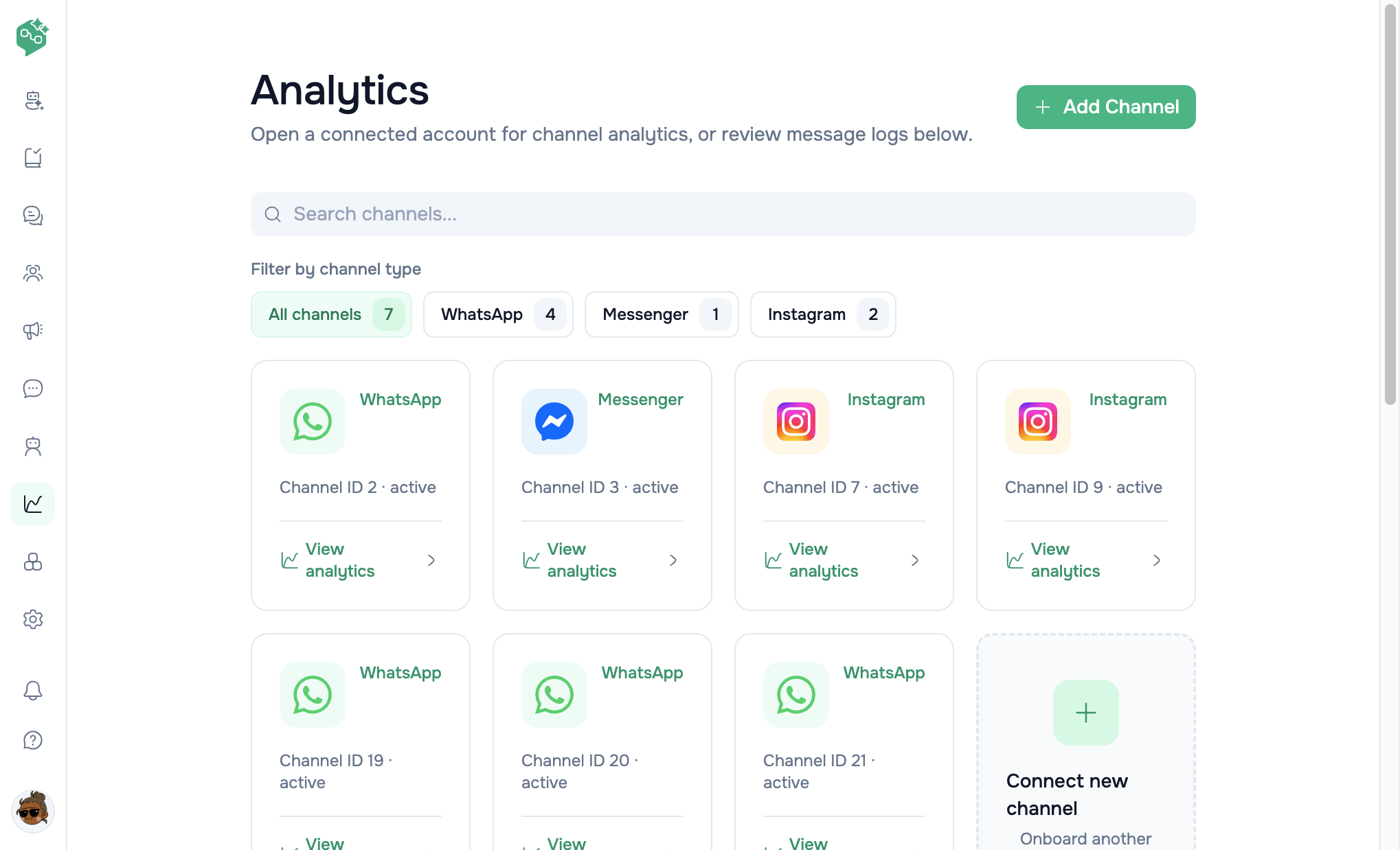
1. In the left sidebar (or **More** on mobile), click **Analytics**
2. You land on **Analytics** with:
* Page title: **Analytics**
* Description: *“Open a connected account for channel analytics, or review message logs below.”*
* **Add channel** button (top right) — same as adding a channel from settings
**URL:** `/analytics`
### Step 2 — Pick a channel
The **channel grid** shows every messaging account in the **current workspace**:
| Element | What it shows |
| ---------------------- | ------------------------------------- |
| Channel icon | WhatsApp, Messenger, or Instagram |
| **Display name** | Friendly name you set when connecting |
| **Identifier** | Phone number, page name, or IG handle |
| **Channel type** badge | WhatsApp / Messenger / Instagram |
| Channel ID & status | Internal ID and connection status |
| **View analytics** | Link into channel dashboard |
**Find channels faster:**
* **Search** — filter by name, identifier, or channel type
* **Filter by channel type** — All channels, WhatsApp, Messenger, Instagram, Other
**No channels yet?** You’ll see *“No connected channels in this workspace yet.”* Use **Connect new channel** (dashed card) → **Settings → Workspace → Channels**.
### Step 3 — Open WhatsApp analytics (full dashboard)
Click **View analytics** on a **WhatsApp** channel.
**URL pattern:** `/analytics/whatsapp/{channelId}`
You see **WhatsApp analytics** with:
* Page description: *“DB-powered WhatsApp messaging analytics. Default view is Last 7 days.”*
* Back link: **← All analytics**
* **Refresh** button — reload all sections (bypasses client cache; server may still serve cached aggregates for up to **\~10 minutes**)
* Date range controls (see below)
* Summary stat cards
* Message trend chart
* Conversation type & top countries
* Template performance
* Message logs (fully functional here)
### Other channel types
Non–WhatsApp / Messenger / Instagram accounts link to `/analytics/channel/{channelId}`. The dashboard shows the same WhatsApp-only placeholder until analytics ships for that channel type.
### Messenger & Instagram today
Routes exist (`/analytics/messenger/{id}`, `/analytics/instagram/{id}`) but the dashboard shows:
> *“Analytics is currently available for WhatsApp only.”*
You can still open these channels from the Analytics home grid; full performance charts are **WhatsApp-only** for now. Use **Chat** and **Co-Admin** for cross-channel thread activity on other channels.
### Message logs on the Analytics home page
The **Message logs** section at the bottom of `/analytics` is a **layout preview** (sample rows). Filters and **Export** on that section are **not connected to live data**. For **real, filterable logs**, open a **WhatsApp channel** analytics page → scroll to **Message logs** (filters: All types / Sent / Received / Template; status; phone search).
***
## Date range & time period
### Presets
| Preset | Meaning |
| ---------------- | ------------------------------------------------------------------------------------- |
| **Today** | Midnight today → now (workspace-local selection, stored as UTC) |
| **Last 7 days** | Default when you first open channel analytics |
| **Last 14 days** | Supported by API and Co-Admin (`range=14d`) — **not** in the dashboard dropdown today |
| **Last 30 days** | Rolling 30 days |
| **Last 60 days** | Rolling 60 days |
| **Last 90 days** | Rolling 90 days |
| **Custom range** | Pick start and end dates |
### How to apply a new range
1. Change **Time period** dropdown (and custom start/end if needed)
2. Optionally use the **calendar popover** (“Choose dates”) for a visual range
3. Click **Apply** — sections reload for the new window
**Important:** Changing the dropdown alone does **not** refresh data until you click **Apply**.
### Comparison to previous period
Summary cards can show **% vs previous** (e.g. sent vs prior window of equal length). The backend compares the current range to the immediately preceding period of the same duration.
***
## Summary metrics (top cards)
Four cards appear at the top of WhatsApp channel analytics:
| Card | Meaning |
| ------------- | ----------------------------------------------------- |
| **Sent** | Outbound messages sent (excludes internal team notes) |
| **Delivered** | Outbound messages confirmed delivered to the device |
| **Read** | Outbound messages opened/read by the recipient |
| **Failed** | Outbound messages that failed to send or deliver |
Each card shows:
* **Count** for the selected period
* **Subtext** — differs per card:
* **Sent** — `% vs previous` (period-over-period change in send volume)
* **Delivered** — delivery rate (%)
* **Read** — read rate (%)
* **Failed** — failed rate (%)
### Rate definitions
| Rate | Formula | Plain language |
| ----------------- | ---------------- | ------------------------------------------ |
| **Delivery rate** | Delivered ÷ Sent | % of sent messages that reached the device |
| **Read rate** | Read ÷ Delivered | % of delivered messages that were read |
| **Failed rate** | Failed ÷ Sent | % of sends that failed |
**Note:** Read rate is calculated on **delivered** messages, not on sent — a message must be delivered before it can be read.
### What is excluded from counts
* **Internal messages** (team-only notes in threads) — not counted
* **Inbound-only** traffic — summary cards focus on **outbound** performance (use message logs for inbound)
Data source: **Vendschat message database** (status webhooks from WhatsApp update delivery/read/failed timestamps). See [Metrics reference](/analytics/analytics-metrics-reference) for technical detail.
***
## Message trend chart
**Section:** Message trend\
**Subtitle:** *Sent, delivered, read, and failed by day.*
* Line chart with four series (sent, delivered, read, failed)
* One point per **calendar day** in the selected range
* **Export** → `whatsapp-analytics-timeseries.csv`
**Use it for:**
* Spotting send spikes (broadcast days)
* Seeing deliverability drops after template changes
* Correlating failures with Meta outages or bad number lists
***
## Conversation type
**Section:** Conversation type\
**Visualization:** Pie chart
Shows the mix of **outbound** message categories in the period, based on linked **WhatsApp template category** when the message used a template:
| Type | Typical source |
| ------------------ | --------------------------------------------- |
| **marketing** | Promotional templates, campaigns |
| **utility** | Order updates, account info |
| **authentication** | OTP / verification templates |
| **transactional** | Receipts, confirmations |
| **service** | Default when no template category is attached |
**Export** → `whatsapp-conversation-types.csv`
**Use it for:** Understanding whether your volume is marketing-heavy (watch opt-in compliance) vs support/utility.
***
## Top countries
**Section:** Top countries\
**Shows:** Up to **10** countries by message volume
Based on the **country** field on contact records for messages in the range (inbound + outbound non-internal).
**Export** → `whatsapp-top-countries.csv`
**Use it for:**
* Regional campaign performance
* Staffing decisions (e.g. spike in Bangladesh vs US)
* Spotting bad data — many **Unknown** countries may mean incomplete contact profiles
***
## Template performance
**Section:** Template performance\
**Subtitle:** *Reply rate and button response after a selected template send.*
### How to use
1. Open **Template performance**
2. Choose a template from the **dropdown** (lists templates for this workspace/channel; **first template auto-selects** when the list loads)
3. Review metrics for the **selected date range**
**Note:** This section uses **database thread logic** (replies after template send). It is **not** the same as Meta’s per-template sent/delivered/read API (`GET .../analytics/templates`) — see [metrics reference](/analytics/analytics-metrics-reference).
| Metric | Meaning |
| ---------------------------- | -------------------------------------------------------------------------------- |
| **Template sent** | Outbound template messages in range |
| **Replies** | Inbound messages in the same thread **after** the template send |
| **Reply rate** | Replies ÷ template sends |
| **Button clicks** | Inbound messages with content after template (proxy for button/quick-reply taps) |
| **Click rate** | Button clicks ÷ template sends |
| **Which button was clicked** | Breakdown of reply text / button labels |
**Export** → `whatsapp-template-performance.csv` (includes button breakdown)
### A/B testing workflow (like TeaCircle)
1. Send broadcast A with template `offer_v1` Monday
2. Send broadcast B with `offer_v2` the following Monday (similar audience)
3. In Analytics, select each template with **Last 7 days**
4. Compare **read rate** (summary) + **reply rate** + **button breakdown**
5. Export both CSVs for stakeholders
***
## Message logs (channel analytics)
**Location:** Bottom of WhatsApp channel analytics page\
**Pagination:** **10 messages per page**
### Filters
| Filter | Options |
| ---------------- | ----------------------------------------------------------------- |
| **Message type** | All types · Sent Messages · Received Messages · Template Messages |
| **Status** | All statuses · Sent · Delivered · Read · Failed |
| **Phone search** | Partial match on contact phone number |
Filters combine with the **global date range** (must click **Apply** on date first).
### Table columns
| Column | Content |
| -------------- | ----------------------------------------------------------------- |
| **Message** | Preview of body or template name — *“Click to view full details”* |
| **Phone** | Recipient phone |
| **Updated at** | Last status change timestamp |
| **Status** | Badge: Sent (blue), Delivered (green), Read (brand), Failed (red) |
### Message detail modal
Click any row to open **Message log details**:
| Field | Purpose |
| ------------------- | -------------------------------------------- |
| Full message body | Exact content sent/received |
| Phone, Contact name | Who |
| Direction, Type | Inbound/outbound, text/template/etc. |
| Template name | If template message |
| Status | Current delivery state |
| External message ID | Meta/WhatsApp reference for support tickets |
| Thread ID | Jump to context in Chat if needed |
| **Timeline** | Sent at · Delivered at · Read at · Failed at |
**Export logs** → `whatsapp-message-logs.csv` (respects **type**, **status**, **phone**, and **date range** filters; exports **only the first page — 10 rows** by default, not the full filtered set). Paginate through logs in the UI or call the API with `per_page` up to **50** if you need more rows in one export.
### Troubleshooting with logs
| Symptom | Filter to try |
| -------------------------- | ------------------------------------------------- |
| Broadcast “didn’t land” | Status **Failed** + type **Template** |
| Wrong numbers in CRM | **Failed** + search country code |
| Customer says they replied | Type **Received** + phone search |
| Template not approved | **Failed** around send time — check **Templates** |
***
## Export & sharing
Every major section has **Export** (CSV download via browser):
| Export button | File name | Contents |
| -------------------------- | ----------------------------------- | -------------------------------- |
| Export summary | `whatsapp-analytics-summary.csv` | Totals + rates |
| Export (trend) | `whatsapp-analytics-timeseries.csv` | Daily sent/delivered/read/failed |
| Export (conversation type) | `whatsapp-conversation-types.csv` | Type mix |
| Export (top countries) | `whatsapp-top-countries.csv` | Country ranking |
| Export (template) | `whatsapp-template-performance.csv` | Template KPIs + buttons |
| Export (message logs) | `whatsapp-message-logs.csv` | Filtered log rows |
**Agency tip:** Export CSV for clients instead of granting Meta Business Manager access. Screenshot summary cards for weekly standups.
***
## After every broadcast — review checklist
1. **Wait 24 hours** — read receipts settle
2. Open **Analytics → your WhatsApp channel**
3. Set range to **Today** or **Last 7 days** → **Apply**
4. Check **Read rate** and **Failed** count vs last campaign
5. Open **Template performance** for the broadcast template
6. Filter **Message logs** by **Failed** — fix bad numbers in CRM
7. Adjust next template, segment labels, or delivery mode
Cross-link: [Broadcasts checklist](/broadcasts/campaigns)
***
## Workspace & permissions
| Topic | Detail |
| -------------------- | --------------------------------------------------------------------------------------------------------------------------------------------------------------------- |
| **Scope** | Analytics is **per workspace** — switch workspace in **Settings** if you manage multiple |
| **Access** | Users need **Analytics** page access (owners/admins typically have all pages; members may be chat-only) |
| **Channel required** | WhatsApp must be **connected** under **Settings → Workspace → Channels** |
| **Data delay** | Status updates arrive via webhooks; near-real-time with occasional Meta delay |
| **Server cache** | Summary aggregates cached \~**10 minutes** per channel/range on the backend — **Refresh** re-fetches from API but may return the same cached totals until TTL expires |
***
## Co-Admin analytics capabilities
Co-Admin can answer analytics-style questions without opening the dashboard:
| Co-Admin can… | Example question |
| ------------------------------------------------------------------------------------ | ------------------------------------------------------------------------------- |
| Summarize **WhatsApp channel** stats (`7d` default; also `14d`, `30d`, `60d`, `90d`) | *“What’s our delivery rate this week?”* |
| List **all WhatsApp channels** with summary (omit `channel_id`) | *“Analytics for all our numbers”* |
| **Contact lookup** by phone/email (`30d` default; optional **label** filter) | *“How many messages did john@… get last month?”* · *“Stats for VIP label only”* |
| Show labels, assignees, support agents per contact | *“Who handled this VIP?”* |
| Estimated outbound cost per contact | Approximate — not Meta invoice |
Co-Admin **cannot** replace the full dashboard for: daily trend charts, CSV export, template button breakdown UI, or calendar custom ranges — direct users to **Analytics** for those.
**Contact lookup rule:** Co-Admin needs **phone or email** — names alone are not unique enough.
***
## Common mistakes
| Mistake | Fix |
| -------------------------------------------------- | ----------------------------------------------------- |
| Judging read rate 1 hour after send | Wait **24h** |
| Forgetting to click **Apply** after changing dates | Click **Apply** |
| Looking at Analytics home logs for real data | Use **WhatsApp channel → Message logs** |
| Expecting Messenger/Instagram charts | WhatsApp only today — use Co-Admin for thread counts |
| Comparing read rate to sent count | Read rate is **read ÷ delivered**, not ÷ sent |
| Wrong workspace selected | Switch workspace in **Settings** (workspace switcher) |
***
## Related docs
* [Analytics overview](/analytics/analytics-overview) — hub and route map
* [Analytics metrics reference](/analytics/analytics-metrics-reference) — formulas, statuses, data sources
* [Analytics FAQ](/analytics/analytics-faq) — customer question bank
* [Broadcasts](/broadcasts/campaigns) — campaigns + post-send review
* [Plans & billing](/billing/plans-and-usage) — Meta WhatsApp fees vs Vendschat subscription
* [AI Agents overview](/ai-agents/ai-agents-overview) — Co-Admin vs customer-facing bots
**Hub:** [Analytics overview](/analytics/analytics-overview) — doc map and route reference.
**Deep dive (WhatsApp):** Click a connected channel → **View analytics** → full dashboard per WhatsApp account.
***
## Quick reference
| Question | Where to go |
| ------------------------------ | ----------------------------------------------------- |
| Which channels can I analyze? | **Analytics** home — cards for each connected account |
| Full charts & exports? | **WhatsApp channel analytics** only (today) |
| Default date range | **Last 7 days** |
| Change date range | Time period dropdown → **Apply** |
| Export for leadership / client | **Export** buttons on each section (CSV) |
| Debug one failed message | Channel analytics → **Message logs** → click row |
| Compare two templates | **Template performance** — switch template dropdown |
| Live “how many open threads?” | **Co-Admin** (not Analytics) |
| One customer’s history | **Co-Admin** — ask by phone or email |
***
## Example: TeaCircle Subscription
TeaCircle runs WhatsApp renewal reminders. Marketing lead **Leo** tests two template wordings.
| Week | Template | Read rate (Analytics) | Decision |
| ---- | -------------------------- | --------------------- | ------------ |
| 1 | `renew_v1` (long copy) | 41% | Keep testing |
| 2 | `renew_v2` (short + emoji) | 58% | Roll out v2 |
Leo opened **Analytics → WhatsApp Business account → Template performance**, selected each template, compared **read rate** and **button clicks**, then exported CSV for the leadership deck.
**Lesson:** Wait **24 hours** after a broadcast before judging read rate — WhatsApp read receipts lag for some users.
***
## Analytics vs Co-Admin — when to use which
| Need | Tool | Why |
| ---------------------------------------- | --------------------------------------- | ------------------------------------------------- |
| “How did last week’s campaign perform?” | **Analytics** | Historical sent/delivered/read/failed with charts |
| “What’s our delivery rate this month?” | **Analytics** | Summary cards + export |
| “Show me failed messages yesterday” | **Analytics → Message logs** | Filterable log with status |
| “How many open threads right now?” | **Co-Admin** | Live workspace overview |
| “List our connected channels” | **Co-Admin** or **Settings → Channels** | Current connection status |
| “How many messages did +1 555… receive?” | **Co-Admin** | Per-contact analytics by phone/email |
| “Which agent handled this customer?” | **Co-Admin** | Contact lookup includes support team |
**Rule of thumb:** *Overview now* → Co-Admin. *How did it perform over time?* → Analytics.
***
## How to navigate Analytics
### Step 1 — Open Analytics home
1. In the left sidebar (or **More** on mobile), click **Analytics**
2. You land on **Analytics** with:
* Page title: **Analytics**
* Description: *“Open a connected account for channel analytics, or review message logs below.”*
* **Add channel** button (top right) — same as adding a channel from settings
**URL:** `/analytics`
### Step 2 — Pick a channel
The **channel grid** shows every messaging account in the **current workspace**:
| Element | What it shows |
| ---------------------- | ------------------------------------- |
| Channel icon | WhatsApp, Messenger, or Instagram |
| **Display name** | Friendly name you set when connecting |
| **Identifier** | Phone number, page name, or IG handle |
| **Channel type** badge | WhatsApp / Messenger / Instagram |
| Channel ID & status | Internal ID and connection status |
| **View analytics** | Link into channel dashboard |
**Find channels faster:**
* **Search** — filter by name, identifier, or channel type
* **Filter by channel type** — All channels, WhatsApp, Messenger, Instagram, Other
**No channels yet?** You’ll see *“No connected channels in this workspace yet.”* Use **Connect new channel** (dashed card) → **Settings → Workspace → Channels**.
### Step 3 — Open WhatsApp analytics (full dashboard)
Click **View analytics** on a **WhatsApp** channel.
**URL pattern:** `/analytics/whatsapp/{channelId}`
You see **WhatsApp analytics** with:
* Page description: *“DB-powered WhatsApp messaging analytics. Default view is Last 7 days.”*
* Back link: **← All analytics**
* **Refresh** button — reload all sections (bypasses client cache; server may still serve cached aggregates for up to **\~10 minutes**)
* Date range controls (see below)
* Summary stat cards
* Message trend chart
* Conversation type & top countries
* Template performance
* Message logs (fully functional here)
### Other channel types
Non–WhatsApp / Messenger / Instagram accounts link to `/analytics/channel/{channelId}`. The dashboard shows the same WhatsApp-only placeholder until analytics ships for that channel type.
### Messenger & Instagram today
Routes exist (`/analytics/messenger/{id}`, `/analytics/instagram/{id}`) but the dashboard shows:
> *“Analytics is currently available for WhatsApp only.”*
You can still open these channels from the Analytics home grid; full performance charts are **WhatsApp-only** for now. Use **Chat** and **Co-Admin** for cross-channel thread activity on other channels.
### Message logs on the Analytics home page
The **Message logs** section at the bottom of `/analytics` is a **layout preview** (sample rows). Filters and **Export** on that section are **not connected to live data**. For **real, filterable logs**, open a **WhatsApp channel** analytics page → scroll to **Message logs** (filters: All types / Sent / Received / Template; status; phone search).
***
## Date range & time period
### Presets
| Preset | Meaning |
| ---------------- | ------------------------------------------------------------------------------------- |
| **Today** | Midnight today → now (workspace-local selection, stored as UTC) |
| **Last 7 days** | Default when you first open channel analytics |
| **Last 14 days** | Supported by API and Co-Admin (`range=14d`) — **not** in the dashboard dropdown today |
| **Last 30 days** | Rolling 30 days |
| **Last 60 days** | Rolling 60 days |
| **Last 90 days** | Rolling 90 days |
| **Custom range** | Pick start and end dates |
### How to apply a new range
1. Change **Time period** dropdown (and custom start/end if needed)
2. Optionally use the **calendar popover** (“Choose dates”) for a visual range
3. Click **Apply** — sections reload for the new window
**Important:** Changing the dropdown alone does **not** refresh data until you click **Apply**.
### Comparison to previous period
Summary cards can show **% vs previous** (e.g. sent vs prior window of equal length). The backend compares the current range to the immediately preceding period of the same duration.
***
## Summary metrics (top cards)
Four cards appear at the top of WhatsApp channel analytics:
| Card | Meaning |
| ------------- | ----------------------------------------------------- |
| **Sent** | Outbound messages sent (excludes internal team notes) |
| **Delivered** | Outbound messages confirmed delivered to the device |
| **Read** | Outbound messages opened/read by the recipient |
| **Failed** | Outbound messages that failed to send or deliver |
Each card shows:
* **Count** for the selected period
* **Subtext** — differs per card:
* **Sent** — `% vs previous` (period-over-period change in send volume)
* **Delivered** — delivery rate (%)
* **Read** — read rate (%)
* **Failed** — failed rate (%)
### Rate definitions
| Rate | Formula | Plain language |
| ----------------- | ---------------- | ------------------------------------------ |
| **Delivery rate** | Delivered ÷ Sent | % of sent messages that reached the device |
| **Read rate** | Read ÷ Delivered | % of delivered messages that were read |
| **Failed rate** | Failed ÷ Sent | % of sends that failed |
**Note:** Read rate is calculated on **delivered** messages, not on sent — a message must be delivered before it can be read.
### What is excluded from counts
* **Internal messages** (team-only notes in threads) — not counted
* **Inbound-only** traffic — summary cards focus on **outbound** performance (use message logs for inbound)
Data source: **Vendschat message database** (status webhooks from WhatsApp update delivery/read/failed timestamps). See [Metrics reference](/analytics/analytics-metrics-reference) for technical detail.
***
## Message trend chart
**Section:** Message trend\
**Subtitle:** *Sent, delivered, read, and failed by day.*
* Line chart with four series (sent, delivered, read, failed)
* One point per **calendar day** in the selected range
* **Export** → `whatsapp-analytics-timeseries.csv`
**Use it for:**
* Spotting send spikes (broadcast days)
* Seeing deliverability drops after template changes
* Correlating failures with Meta outages or bad number lists
***
## Conversation type
**Section:** Conversation type\
**Visualization:** Pie chart
Shows the mix of **outbound** message categories in the period, based on linked **WhatsApp template category** when the message used a template:
| Type | Typical source |
| ------------------ | --------------------------------------------- |
| **marketing** | Promotional templates, campaigns |
| **utility** | Order updates, account info |
| **authentication** | OTP / verification templates |
| **transactional** | Receipts, confirmations |
| **service** | Default when no template category is attached |
**Export** → `whatsapp-conversation-types.csv`
**Use it for:** Understanding whether your volume is marketing-heavy (watch opt-in compliance) vs support/utility.
***
## Top countries
**Section:** Top countries\
**Shows:** Up to **10** countries by message volume
Based on the **country** field on contact records for messages in the range (inbound + outbound non-internal).
**Export** → `whatsapp-top-countries.csv`
**Use it for:**
* Regional campaign performance
* Staffing decisions (e.g. spike in Bangladesh vs US)
* Spotting bad data — many **Unknown** countries may mean incomplete contact profiles
***
## Template performance
**Section:** Template performance\
**Subtitle:** *Reply rate and button response after a selected template send.*
### How to use
1. Open **Template performance**
2. Choose a template from the **dropdown** (lists templates for this workspace/channel; **first template auto-selects** when the list loads)
3. Review metrics for the **selected date range**
**Note:** This section uses **database thread logic** (replies after template send). It is **not** the same as Meta’s per-template sent/delivered/read API (`GET .../analytics/templates`) — see [metrics reference](/analytics/analytics-metrics-reference).
| Metric | Meaning |
| ---------------------------- | -------------------------------------------------------------------------------- |
| **Template sent** | Outbound template messages in range |
| **Replies** | Inbound messages in the same thread **after** the template send |
| **Reply rate** | Replies ÷ template sends |
| **Button clicks** | Inbound messages with content after template (proxy for button/quick-reply taps) |
| **Click rate** | Button clicks ÷ template sends |
| **Which button was clicked** | Breakdown of reply text / button labels |
**Export** → `whatsapp-template-performance.csv` (includes button breakdown)
### A/B testing workflow (like TeaCircle)
1. Send broadcast A with template `offer_v1` Monday
2. Send broadcast B with `offer_v2` the following Monday (similar audience)
3. In Analytics, select each template with **Last 7 days**
4. Compare **read rate** (summary) + **reply rate** + **button breakdown**
5. Export both CSVs for stakeholders
***
## Message logs (channel analytics)
**Location:** Bottom of WhatsApp channel analytics page\
**Pagination:** **10 messages per page**
### Filters
| Filter | Options |
| ---------------- | ----------------------------------------------------------------- |
| **Message type** | All types · Sent Messages · Received Messages · Template Messages |
| **Status** | All statuses · Sent · Delivered · Read · Failed |
| **Phone search** | Partial match on contact phone number |
Filters combine with the **global date range** (must click **Apply** on date first).
### Table columns
| Column | Content |
| -------------- | ----------------------------------------------------------------- |
| **Message** | Preview of body or template name — *“Click to view full details”* |
| **Phone** | Recipient phone |
| **Updated at** | Last status change timestamp |
| **Status** | Badge: Sent (blue), Delivered (green), Read (brand), Failed (red) |
### Message detail modal
Click any row to open **Message log details**:
| Field | Purpose |
| ------------------- | -------------------------------------------- |
| Full message body | Exact content sent/received |
| Phone, Contact name | Who |
| Direction, Type | Inbound/outbound, text/template/etc. |
| Template name | If template message |
| Status | Current delivery state |
| External message ID | Meta/WhatsApp reference for support tickets |
| Thread ID | Jump to context in Chat if needed |
| **Timeline** | Sent at · Delivered at · Read at · Failed at |
**Export logs** → `whatsapp-message-logs.csv` (respects **type**, **status**, **phone**, and **date range** filters; exports **only the first page — 10 rows** by default, not the full filtered set). Paginate through logs in the UI or call the API with `per_page` up to **50** if you need more rows in one export.
### Troubleshooting with logs
| Symptom | Filter to try |
| -------------------------- | ------------------------------------------------- |
| Broadcast “didn’t land” | Status **Failed** + type **Template** |
| Wrong numbers in CRM | **Failed** + search country code |
| Customer says they replied | Type **Received** + phone search |
| Template not approved | **Failed** around send time — check **Templates** |
***
## Export & sharing
Every major section has **Export** (CSV download via browser):
| Export button | File name | Contents |
| -------------------------- | ----------------------------------- | -------------------------------- |
| Export summary | `whatsapp-analytics-summary.csv` | Totals + rates |
| Export (trend) | `whatsapp-analytics-timeseries.csv` | Daily sent/delivered/read/failed |
| Export (conversation type) | `whatsapp-conversation-types.csv` | Type mix |
| Export (top countries) | `whatsapp-top-countries.csv` | Country ranking |
| Export (template) | `whatsapp-template-performance.csv` | Template KPIs + buttons |
| Export (message logs) | `whatsapp-message-logs.csv` | Filtered log rows |
**Agency tip:** Export CSV for clients instead of granting Meta Business Manager access. Screenshot summary cards for weekly standups.
***
## After every broadcast — review checklist
1. **Wait 24 hours** — read receipts settle
2. Open **Analytics → your WhatsApp channel**
3. Set range to **Today** or **Last 7 days** → **Apply**
4. Check **Read rate** and **Failed** count vs last campaign
5. Open **Template performance** for the broadcast template
6. Filter **Message logs** by **Failed** — fix bad numbers in CRM
7. Adjust next template, segment labels, or delivery mode
Cross-link: [Broadcasts checklist](/broadcasts/campaigns)
***
## Workspace & permissions
| Topic | Detail |
| -------------------- | --------------------------------------------------------------------------------------------------------------------------------------------------------------------- |
| **Scope** | Analytics is **per workspace** — switch workspace in **Settings** if you manage multiple |
| **Access** | Users need **Analytics** page access (owners/admins typically have all pages; members may be chat-only) |
| **Channel required** | WhatsApp must be **connected** under **Settings → Workspace → Channels** |
| **Data delay** | Status updates arrive via webhooks; near-real-time with occasional Meta delay |
| **Server cache** | Summary aggregates cached \~**10 minutes** per channel/range on the backend — **Refresh** re-fetches from API but may return the same cached totals until TTL expires |
***
## Co-Admin analytics capabilities
Co-Admin can answer analytics-style questions without opening the dashboard:
| Co-Admin can… | Example question |
| ------------------------------------------------------------------------------------ | ------------------------------------------------------------------------------- |
| Summarize **WhatsApp channel** stats (`7d` default; also `14d`, `30d`, `60d`, `90d`) | *“What’s our delivery rate this week?”* |
| List **all WhatsApp channels** with summary (omit `channel_id`) | *“Analytics for all our numbers”* |
| **Contact lookup** by phone/email (`30d` default; optional **label** filter) | *“How many messages did john@… get last month?”* · *“Stats for VIP label only”* |
| Show labels, assignees, support agents per contact | *“Who handled this VIP?”* |
| Estimated outbound cost per contact | Approximate — not Meta invoice |
Co-Admin **cannot** replace the full dashboard for: daily trend charts, CSV export, template button breakdown UI, or calendar custom ranges — direct users to **Analytics** for those.
**Contact lookup rule:** Co-Admin needs **phone or email** — names alone are not unique enough.
***
## Common mistakes
| Mistake | Fix |
| -------------------------------------------------- | ----------------------------------------------------- |
| Judging read rate 1 hour after send | Wait **24h** |
| Forgetting to click **Apply** after changing dates | Click **Apply** |
| Looking at Analytics home logs for real data | Use **WhatsApp channel → Message logs** |
| Expecting Messenger/Instagram charts | WhatsApp only today — use Co-Admin for thread counts |
| Comparing read rate to sent count | Read rate is **read ÷ delivered**, not ÷ sent |
| Wrong workspace selected | Switch workspace in **Settings** (workspace switcher) |
***
## Related docs
* [Analytics overview](/analytics/analytics-overview) — hub and route map
* [Analytics metrics reference](/analytics/analytics-metrics-reference) — formulas, statuses, data sources
* [Analytics FAQ](/analytics/analytics-faq) — customer question bank
* [Broadcasts](/broadcasts/campaigns) — campaigns + post-send review
* [Plans & billing](/billing/plans-and-usage) — Meta WhatsApp fees vs Vendschat subscription
* [AI Agents overview](/ai-agents/ai-agents-overview) — Co-Admin vs customer-facing bots